How to delete temporary files in a browser on a Linux OS
Skip information indexHow to delete temporary files from the Mozilla Firefox browser on Linux
To delete cookies and temporary cached files from the Mozilla Firefox browser on the Linux operating system, you can access it in two ways from the browser's graphical interface:
-
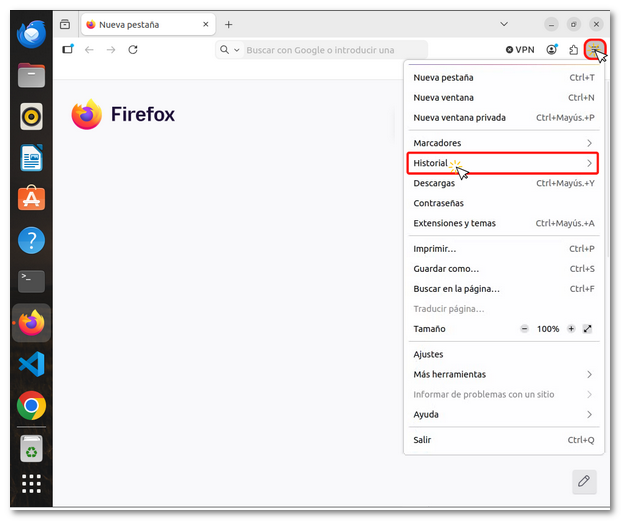
In the Firefox browser toolbar, click on the three horizontal bars icon, located in the upper right corner, and enter "Record"
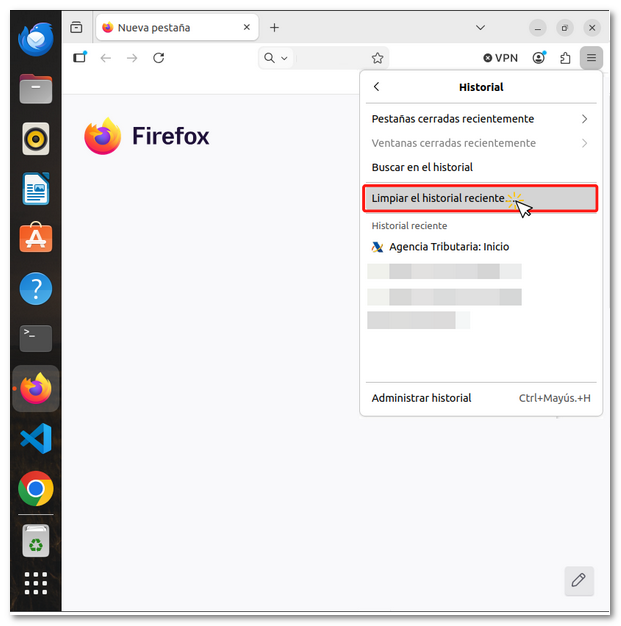
In the next window, click on "Clear recent history"
-
From the menu bar at the top, by clicking on "Preferences" either "Settings"
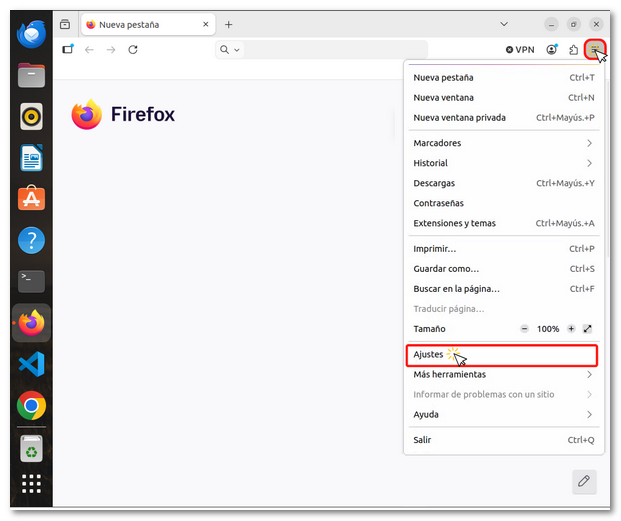
In the new window, select "Privacy & Security", then scroll down until you find the section for "Record" and click on "Clear history..."
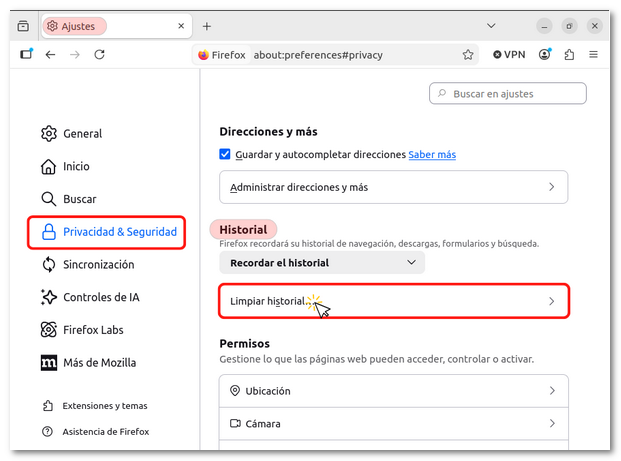
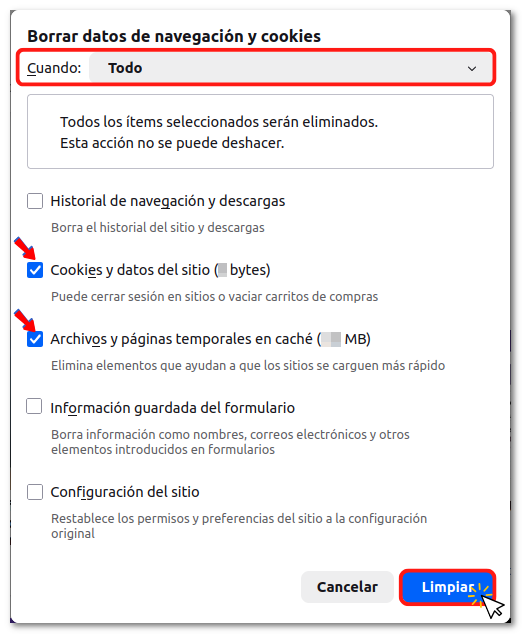
From either access method you will get the same pop-up window with the name "Clear browsing data and cookies" Next, select "All"at the top, then, mark"Cookies and site data" and "Cached temporary files and pages" and press "Clean"