How to delete temporary files in browsers with Windows OS
Skip information indexHow to delete temporary files from the Microsoft Edge browser on Windows
To delete cookies and temporary cached files from the Microsoft Edge browser, you have three options:
-
In the browser toolbar, click on "Settings and more", identified by the icon of the three horizontal dots, and enters "Delete browsing data"
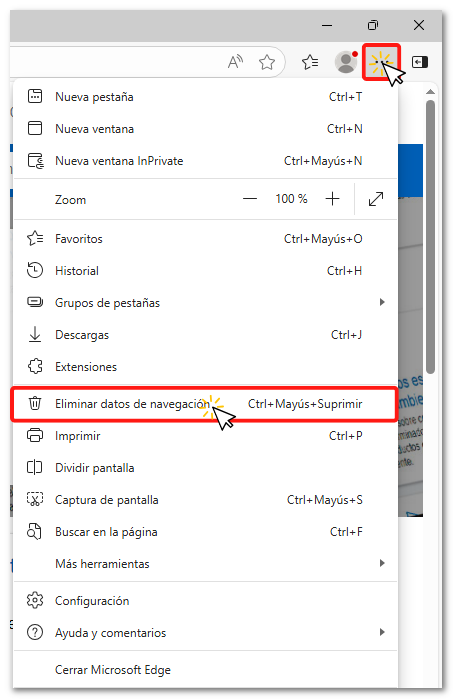
-
From the three horizontal dots (Settings and more), tap on "Record"
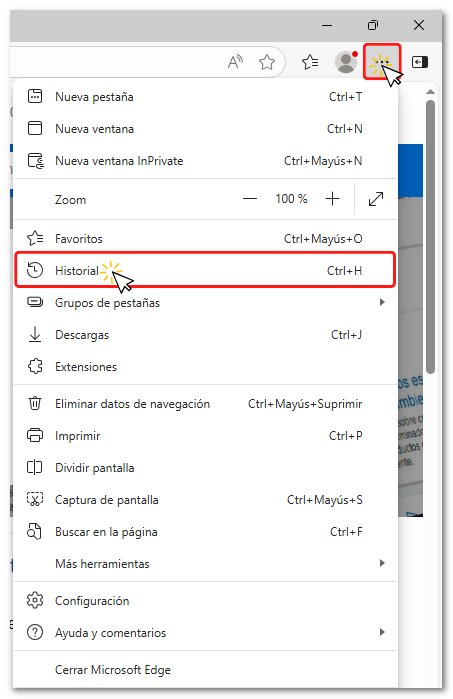
In the new window, click again on "Record"
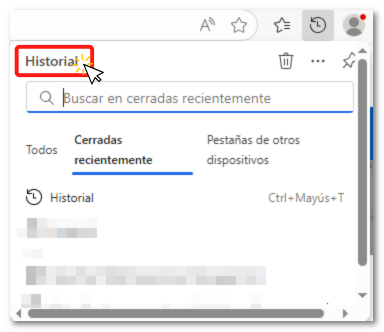
And then click on "Delete scan data"
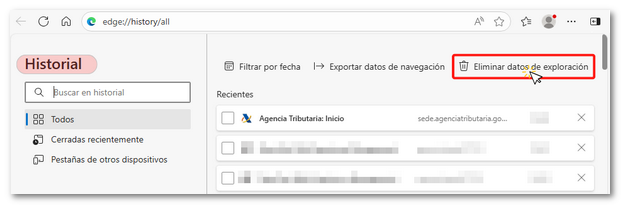
-
Also, from the three horizontal dots icon (Settings and more), enter "Configuration"
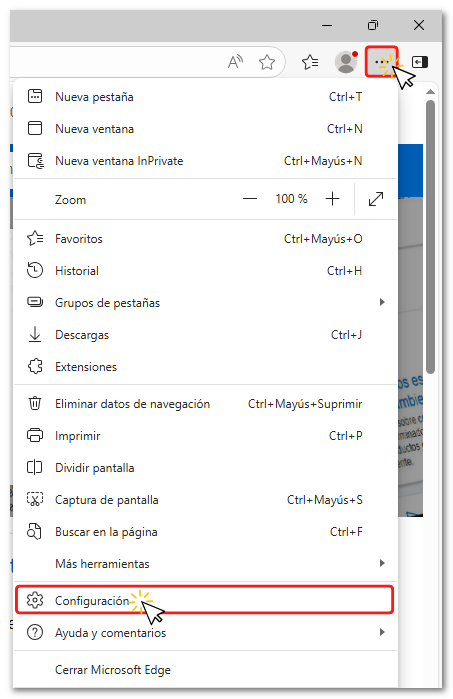
Select the option "Privacy, search, and services" from the left margin, and click on "Delete browsing data"
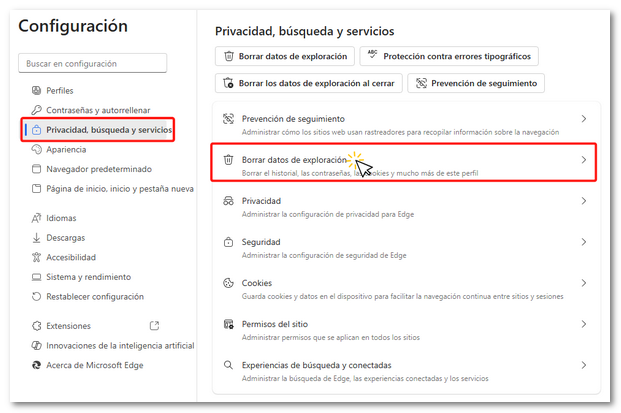
In the new window, click on "Choose what to delete".
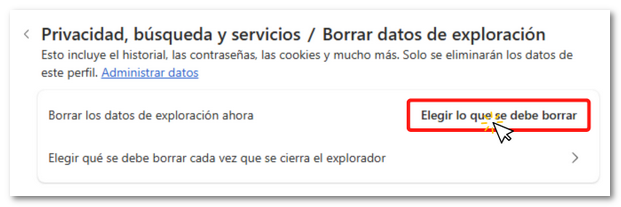
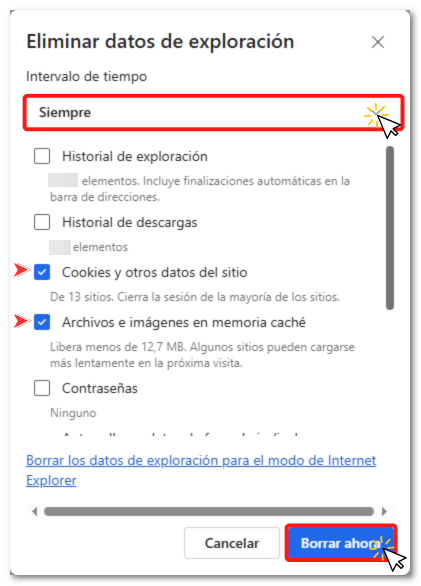
From any of the three options, you access the same pop-up window. Select "Always" in the "Time Interval" dropdown menu and select only the options "Cookies and other site data" and "Files and images in cache" Then, press "Delete now"