How to respond to requirements or submit documentation relating to a document received from the AEAT (State Tax Administration Agency)
Please check the contents of the requirement to ensure that this is the correct procedure for replying, submitting declarations or providing documentation. Other options may be listed, such as ‘Submit supplementary documentation’ or ‘Respond to requirements, make declarations and/or provide supporting documents’ for a specific form or formality.
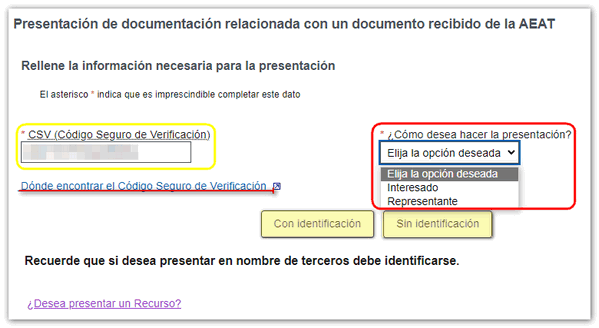
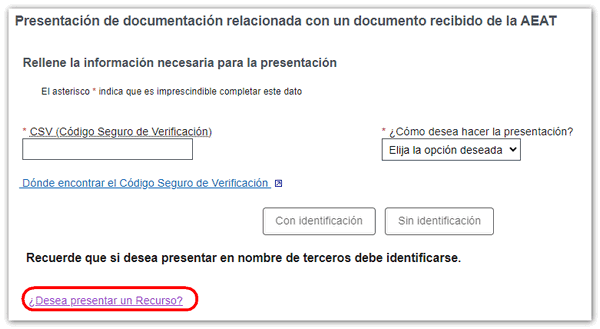
To access the reply to the notification, enter the CVC (secure verification code) shown in the notification you received in the relevant box and select ‘How would you like to submit your response?’:
- The data subject: may log in using identification in the form of an electroniccertificate oran electronicDNI and Cl@ve, or without identification.
- The representative: can only log in ‘With identification’ using a certificate or an electronic DNI and Cl@ve.
To find the CVC, you can consult the help section by clicking on the link ‘Where to find the secure verification code’.
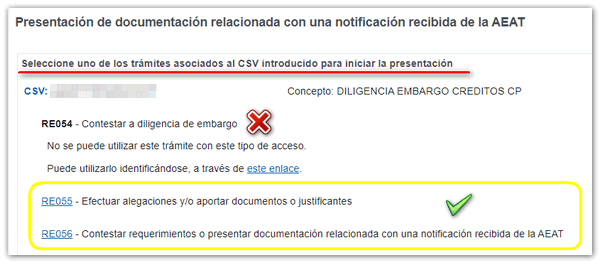
If you log in as an interested party without providing identification, the system will offer you the options permitted by the relevant procedure. As you can see from the example below, the system shows you the options that can be carried out without identification and highlights the response options that have identification requirements.
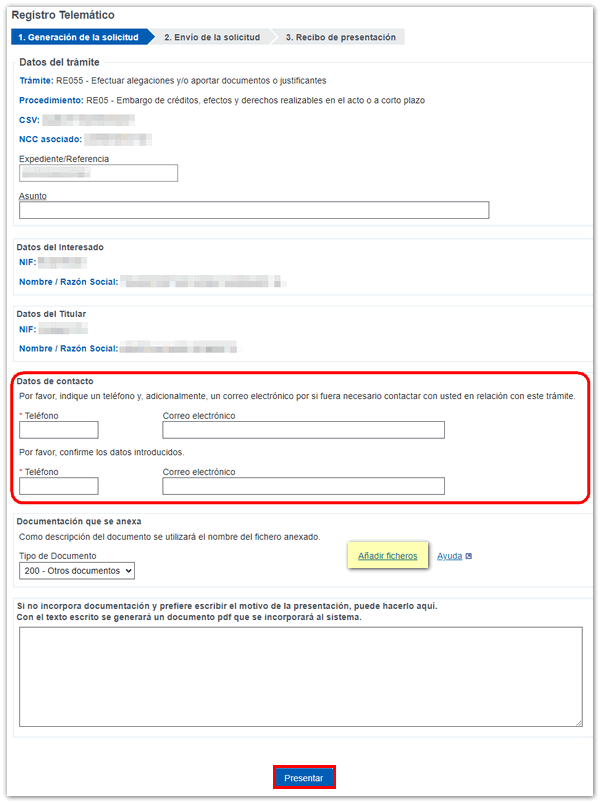
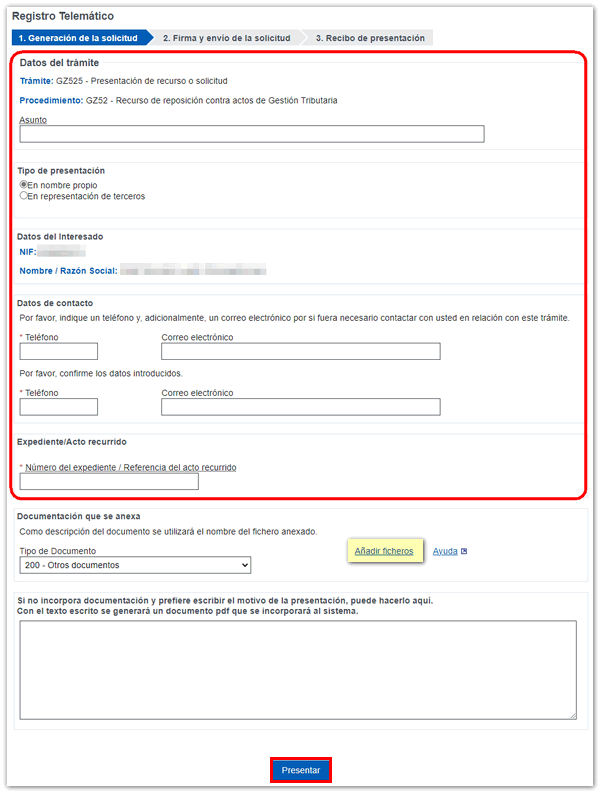
Once you have accessed the electronic registry, please complete the required fields, which include the file number/reference, subject, contact details, telephone number and, in addition, an email address.
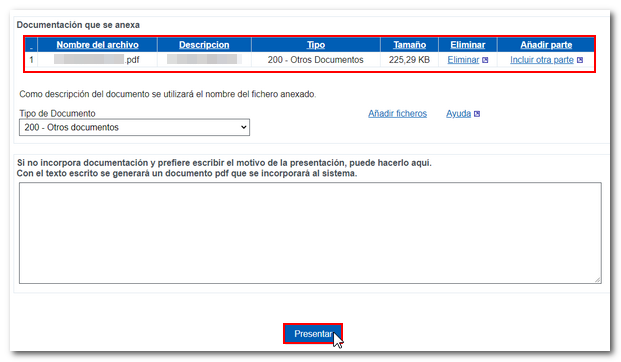
You can attach the documents using the ‘Add files’ option. You also have the option of stating the reason for your submission in the space provided at the bottom of the form.
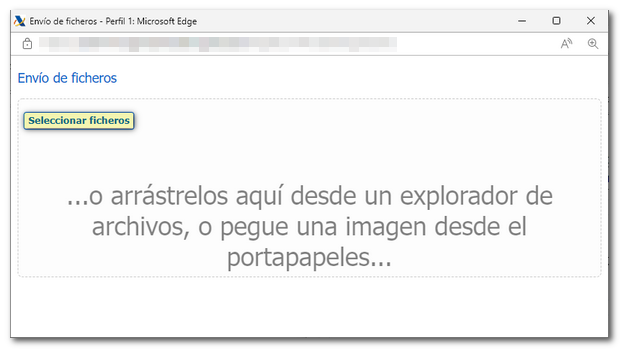
When you click ‘Add files’, a window will appear allowing you to select the files to attach to your reply. Click on ‘Select files’ to open the file explorer and choose the file you wish to annex. Please note that the file must not exceed 128 MB and must be in an accepted format. You can find out more about the supported file types via the ‘Help’ option.
Once you have completed the required fields and provided all the necessary documentation, click on "Submit".
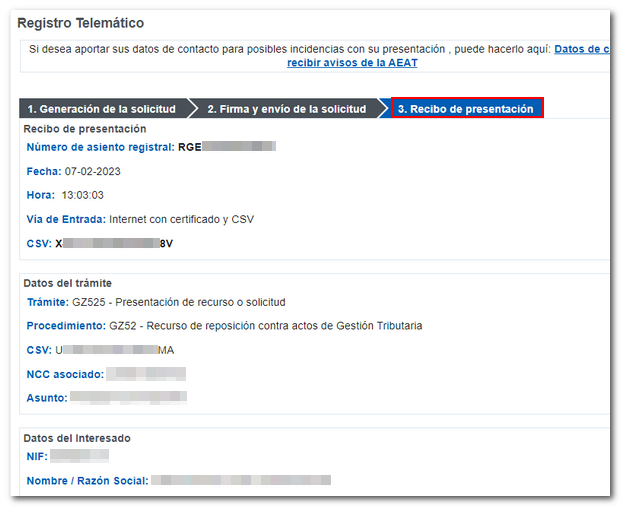
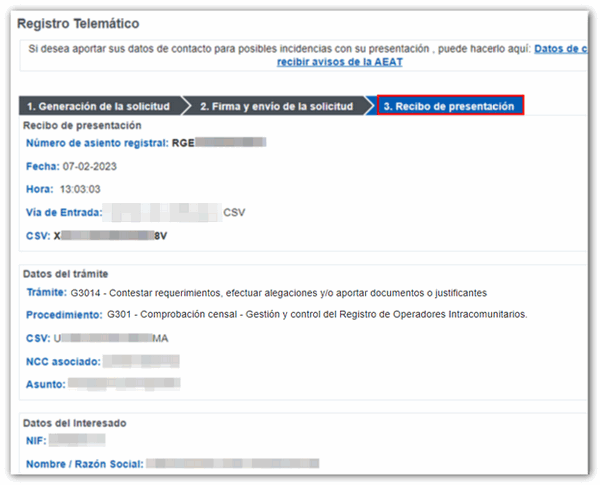
If the submission is successful, a confirmation of the record’s creation will be displayed on the screen.
If the notification states that you may lodge an appeal or an economic-administrative claim and you wish to do so, you will need to click on the question, “Do you wish to lodge an appeal?”
This link will take you to the procedure for submitting appeals and complaints at our head office

You will need to choose the type of appeal or complaint you wish to lodge. You should be able to tell from the notification which department the application should be addressed to
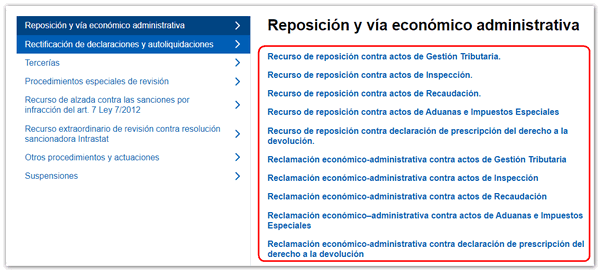
Once you have chosen it, go to the presentation or application. If you are unsure exactly what type of decision the appeal relates to, please contact the office or department that issued the notification, as indicated in the header of the notification
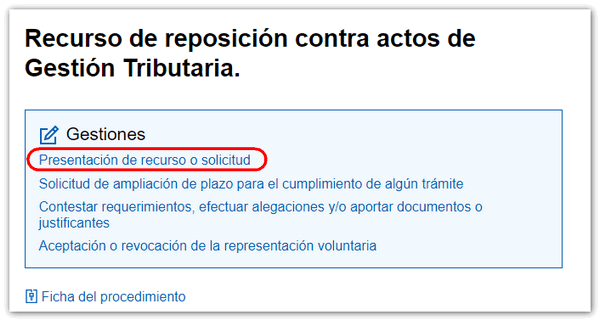
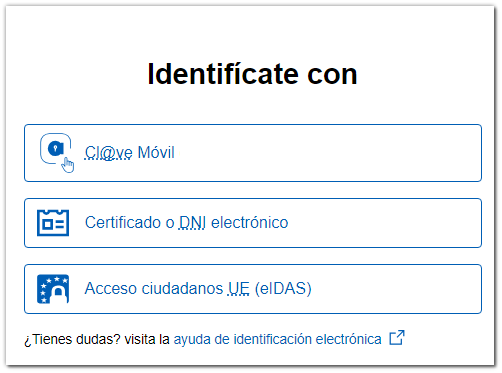
This formality requires electronic identification. Select the type of identification.
Please fill in the requested details: subject, type of representation, telephone number and, if you wish, an email address. In this case, there is a mandatory field: ‘Case number/Reference number of the decision being appealed’. You can annex files and enter any description you wish.
Upon submission, the report detailing the entry for each application record will appear.