Verification of documents using CSV with certificate and disclosure of electronic files
You can verify the authenticity and integrity of a document generated by the State Tax Administration Agency and also access the content of the file it relates to from "Document verification using secure verification code with certificate and disclosure of electronic files".
Identify yourself using Cl@ve Mobile Cl@ve, electronic certificate, DNIe either eIDAS.
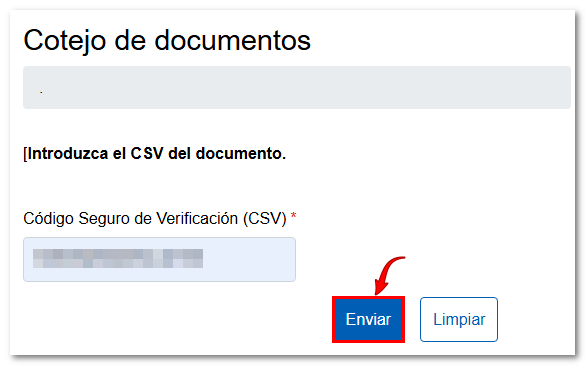
Enter the Secure Verification Code (CSV) in the box and press "Submit".
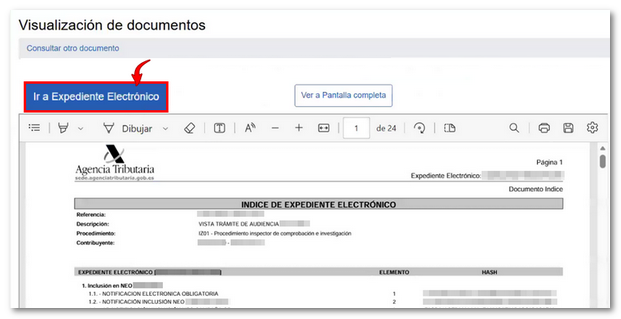
After pressing "Submit" you will get the document on screen with the index, click on the button "Go to the Electronic File.
Currently, there are two options for downloading the files:
- Download documents in file ZIP: Save a compressed .zip file containing all the documents locally. You can use this option if the file does not exceed 2GB.
- Light Download: A document is downloaded to view the file (in format HTML) which links all the documents in the file to the Electronic Headquarters' Verification Viewer. In other words, a single, fully portable document is downloaded, allowing access to all documents in the file using a device with an internet connection.
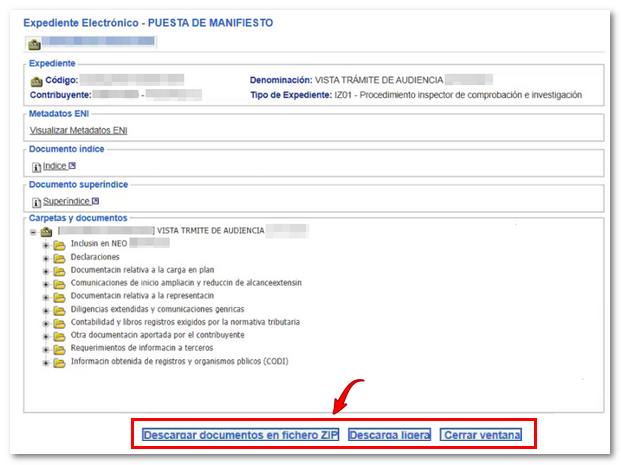
DOWNLOAD DOCUMENTS IN FILE ZIP
In this case, select "Download documents to file" ZIP"
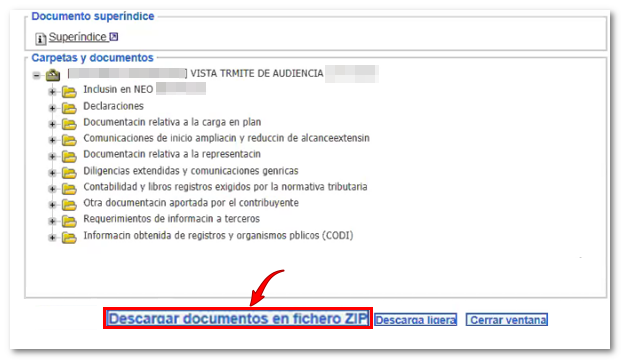
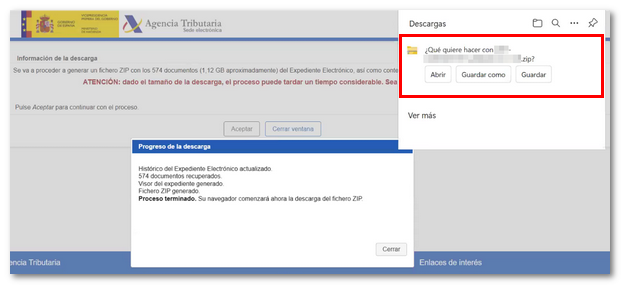
In the next window, click on "Accept" and the download of the compressed .zip file will begin. The file will be downloaded to the location that the browser has assigned by default to downloads; however, you can select a different location.
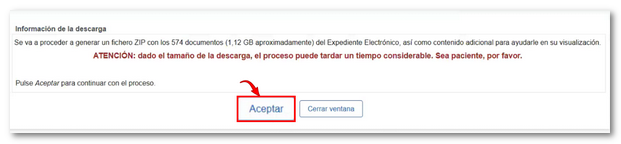
Note: If the file size is greater than 2GB, a warning will appear indicating that there may be download failures.
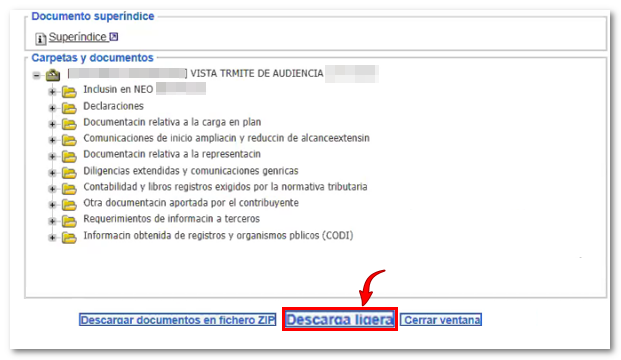
LIGHT DOWNLOAD
In this case, select "Light download".
In the next window, click on "Begin" so that the file will be downloaded.HTML
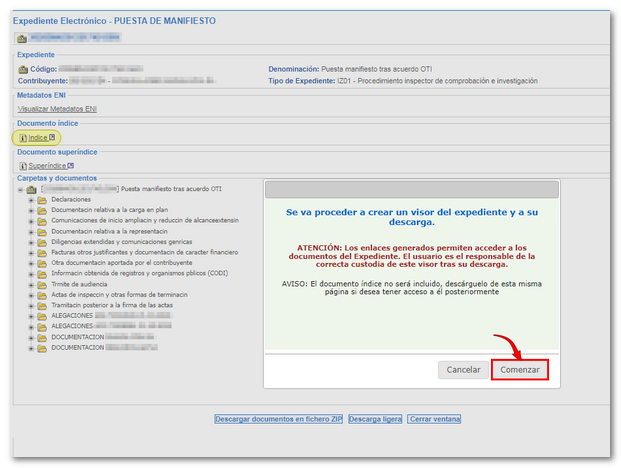
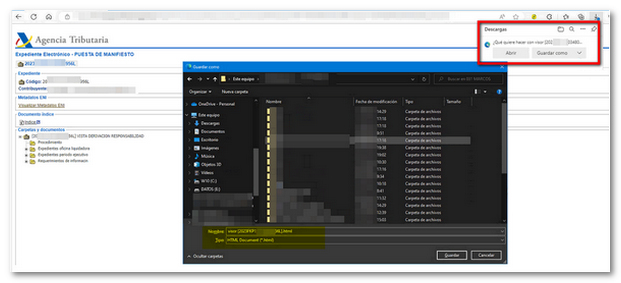
Once the file has been downloaded.HTMLWhen opened, it displays a page with links to all the documents in the file. Click on any of them to automatically display them from "Document Comparison". Please note that the index document is not included; to download it, access the file and click on "Index" in the "Index Document" section.