Model 123
Skip information indexPresentation of model 123. Fiscal year 2024 and following years
To access the electronic presentation, click on "Model 123. Fiscal year 2024 and following years. Presentation", you will need to identify yourself with a digital signature (certificate or electronic DNI ) or through the identification system Cl@ve (only natural persons).
If the declarant does not have an electronic identification, it is necessary that the person making the submission be authorized to submit declarations on behalf of third parties, either by being registered as a collaborator or by being authorized to carry out this procedure.
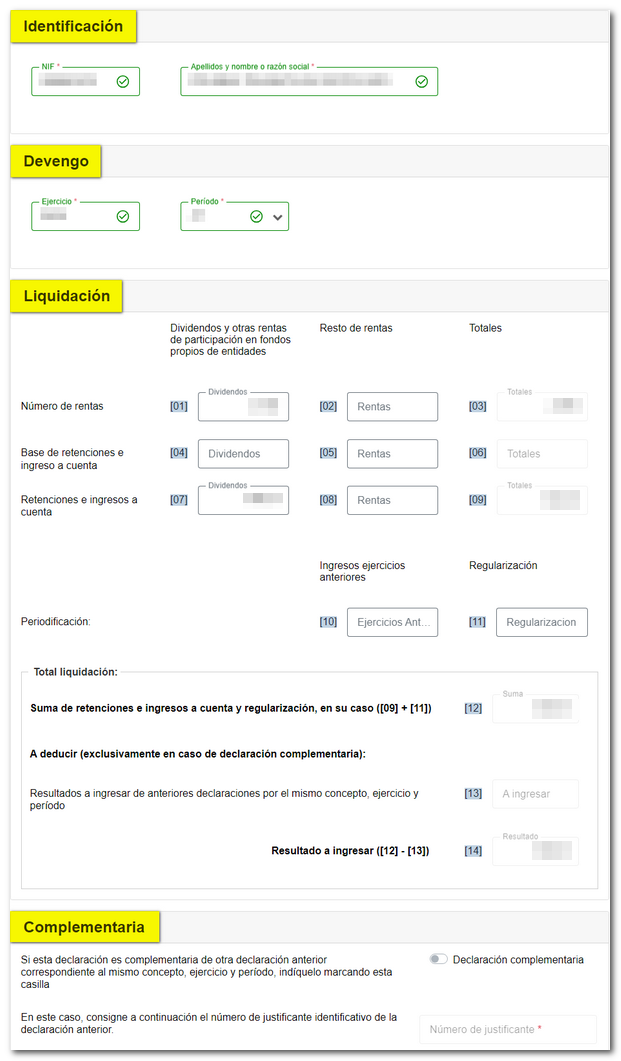
Once identified, complete the identification details and the rest of the sections of the declaration, bearing in mind that those marked with an asterisk are mandatory.
At the bottom of the form you will find the button panel with the available functions:
-
Show or hide information about errors or completion notices.

-
"Delete Return" deletes the data from the return you are working on to start a new one.

-
Using the " Validate declaration " button, check if you have any warnings or errors before submitting the declaration. The "Errors" tab will appear at the top with the notices or errors detected. The notices do not prevent you from filing your return, although it is advisable to review them. But if errors appear, they will need to be corrected. Using the "Go to Error" button, you can directly access the box that needs to be checked.
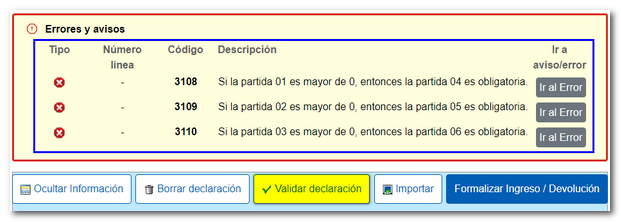
Once the errors have been corrected, you can continue with the presentation.
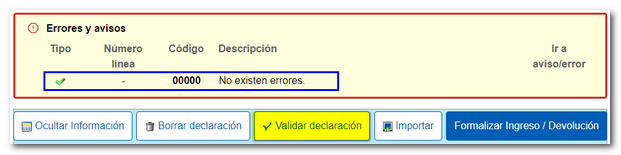
-
From " Import ", you can recover the declaration obtained through a file generated with the form or with a program other than AEAT . It must be taken into account that this file must be constructed in plain text (.txt), without any type of format and that it must conform to the logical design of the current model. When importing a file, all boxes are unlocked, so you can modify the imported data in any field.

-
Use the " Formalize Income/Refund " button to submit the declaration once it has been completed and validated.

Select the type of declaration depending on whether it is a positive result or zero/No activity.
If the result is a get into And if you don't set up direct debit payments, you will first need to obtain the NRC and then submit the self-assessment. The NRC is the Full Reference Number, a 22-character code that serves as proof of payment. From the form itself, on the "Make payment" button (NRC)" you will be able to connect to the payment gateway to automatically generate a NRC with the data contained in the declaration. If you already have a NRC provided by your bank, you can include it in the "Reference Number NRC " box.
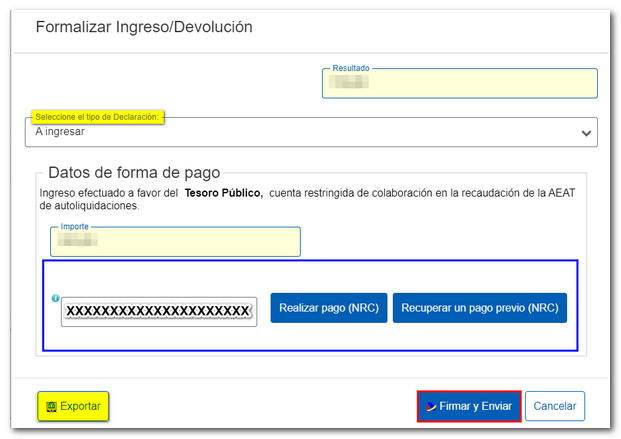
If you direct debit the payment, select the option "Direct debit of the amount to be paid" and enter the account digits IBAN .
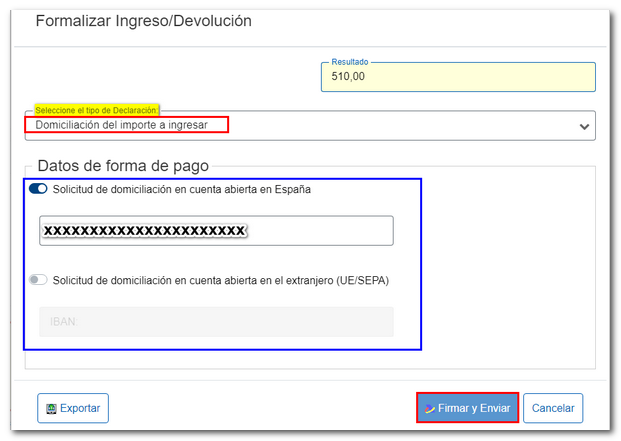
Using the " Export " button, you will obtain a file in BOE format that is saved by default in the folder that the browser has as default. However, you can also select the directory where to save the file. It is advisable to save it on the local disk, inside the folder " AEAT ". The file name is made up of the NIF of the declarant, the exercise, the period and by the extension .123.
If you choose one of the types of debt recognition, after filing the declaration, you must process the debt from the "Process debt" button or from the specific "Pay, defer and consult" procedure.
Model 123 also includes the option of acknowledgment of debt and payment by transfer from a bank account opened in a NON-COLLABORATING Credit Institution, by choosing in the drop-down menu "Select the type of Declaration", "Acknowledgment of debt and payment by transfer". Please note that instant transfers are not allowed.
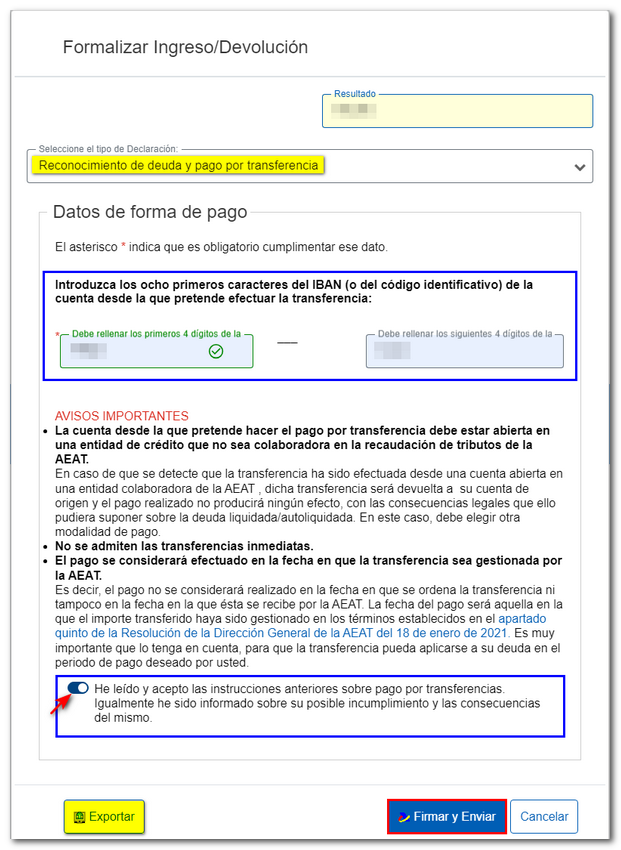
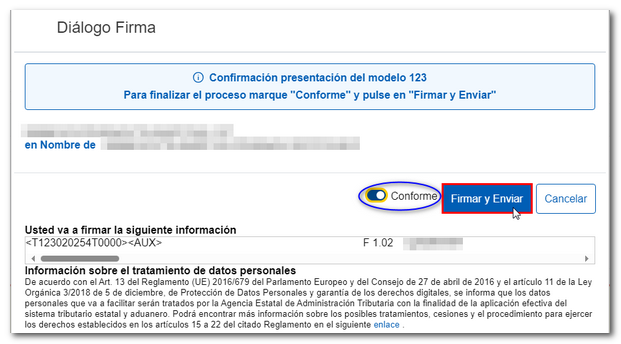
Click on "Sign and Send" and a window will appear with the encoded declaration information and the data of the filer and the declarant. Check the "I agree" box and press "Sign and Send" to complete the submission.
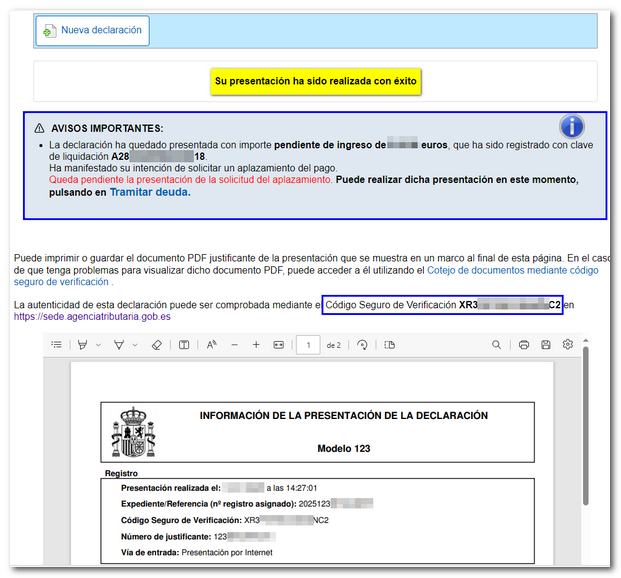
Finally, if everything is correct, the response sheet will be generated with the message "Your submission has been successfully completed" and an embedded PDF containing a first page with the submission information (registration entry number, Secure Verification Code, receipt number, day and time of submission and presenter data) and, on the subsequent pages, the complete copy of the declaration.
In cases where there is recognition of debt, a link to submit the deferral or compensation request will be displayed on the response sheet for successfully submitting the request. Click "Process debt".
The settlement details will then appear with the debtor's data and the settlement key. You will have to choose between one of the available options: defer, compensate or pay.