Remote support on Mac
To install the remote support tool on Mac, first download the file. Depending on the browser used, the download dialog will vary.
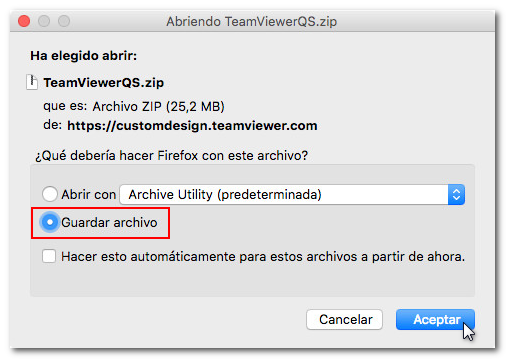
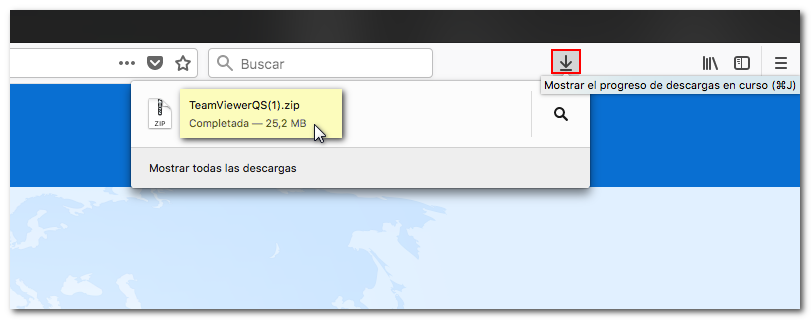
In Mozilla Firefox , you will be prompted to open or save the compressed file to install the application. Click "Save File" and click "OK". In the top bar of the browser, locate the arrow icon to view the latest downloads and run the application.
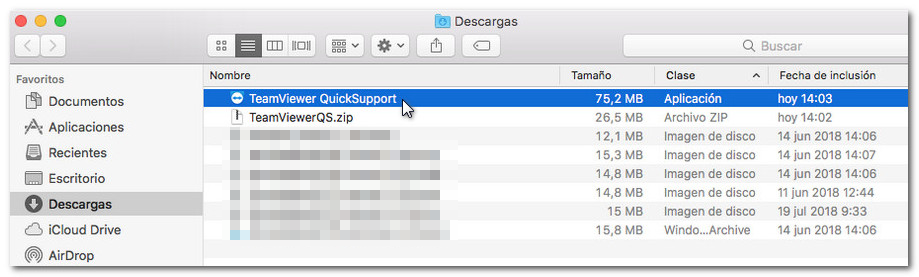
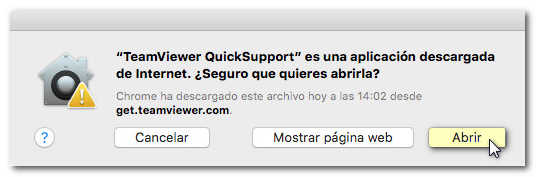
In Google Chrome , the download bar will appear at the bottom of the screen. Click on the downloaded ZIP file and you will go directly to the "Downloads" folder. Run the "TeamViewer QuickSupport" application and press "Open" to launch the application.

In Safari , at the top of the browser, click the arrow icon to view downloads. Tap on the "TeamViewer QuickSupport" application to open it.
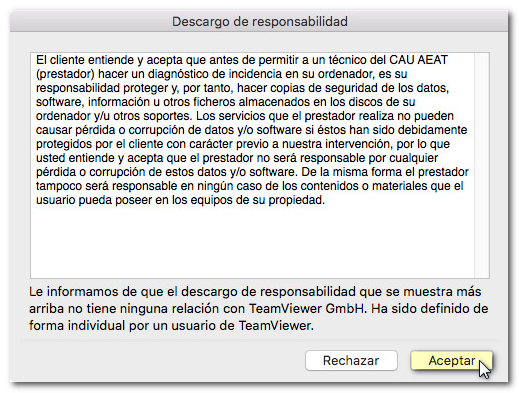
In all cases, you will then be asked to accept the disclaimer regarding the use of the application.
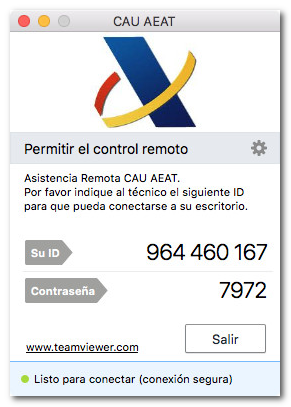
After accepting, you are offered the ID and password that you must provide to the agent who assists you in order to view your screen.
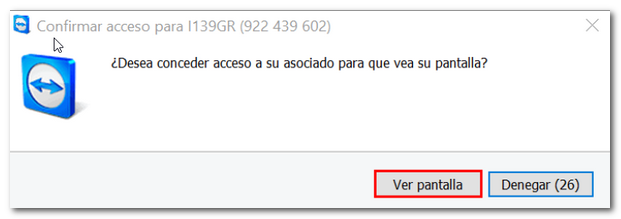
Depending on the version of the application, another window may ask for your permission to allow the agent to view your screen.
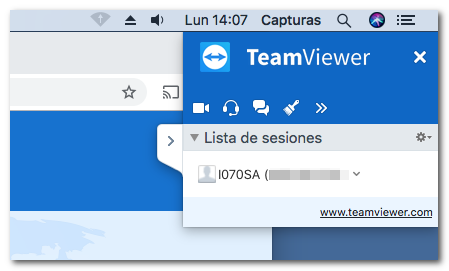
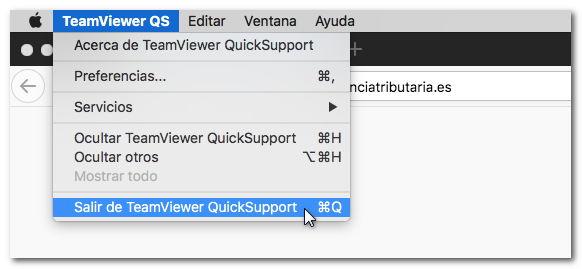
In a window that will appear at the top of the screen you will be able to check that the viewing session is active. To end the session, you just have to click on the cross or access the application menu and "Exit TeamViewer QuickSupport".
To access the app download on Mac, click here .