Form 780 - Technical Assistance
For the electronic submission of form 780 you have an online form at the Electronic Headquarters of the AEAT, within the procedures for model 780. "Form 780. Tax on interest margin and commissions of certain financial institutions. Self-assessment".
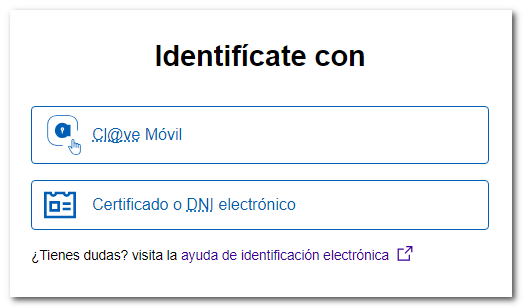
This procedure requires identification with an electronic certificate, DNIe either Cl@ve. If the declarant does not have an approved identification system, the person filing the return must be authorized to file returns on behalf of third parties, either by being registered as a collaborator or by being authorized to do so.
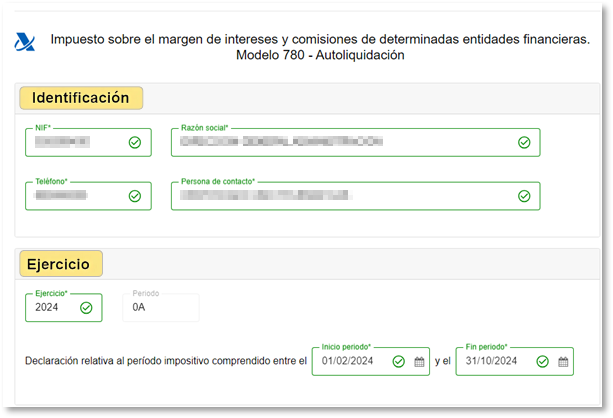
In the form, fill in the identification data, NIF, company name, telephone number and contact person. Next, fill in the fiscal year box. The default period is 0Y since this is an annual return. Choose the start and end dates for the period by clicking on the calendar icon or fill in the information directly in the dd/mm/yyyy box.
Enter the tax settlement data; Please note that some boxes are self-filling as indicated in previous boxes.
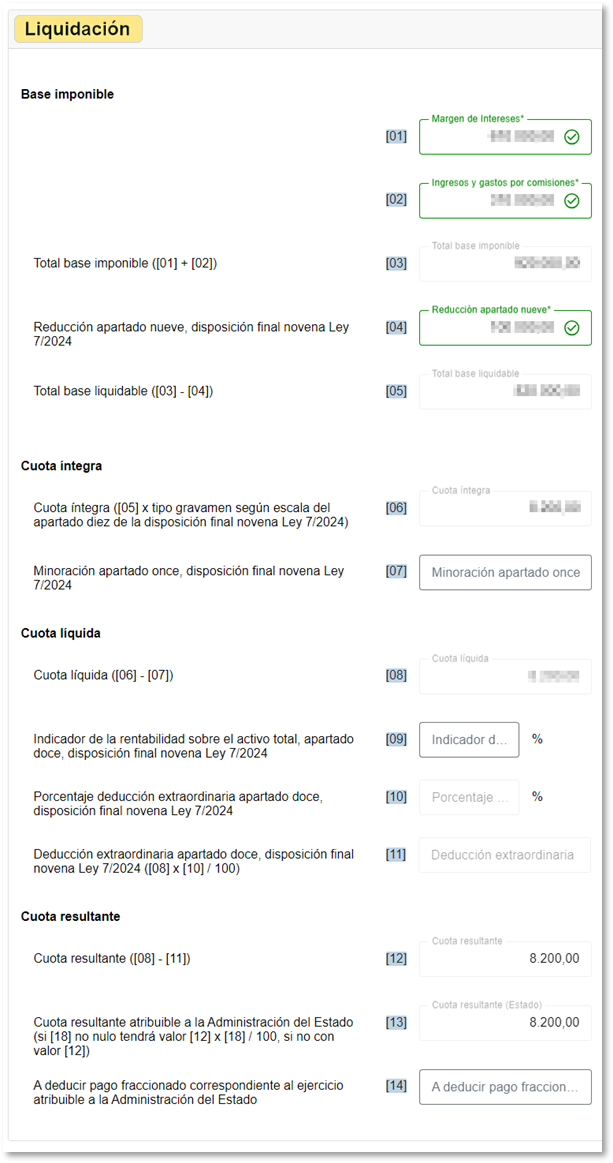
The "Common Territory" field (box 18) will only be completed if data is entered in the other boxes in the "Territory-Related Tax Information" section.

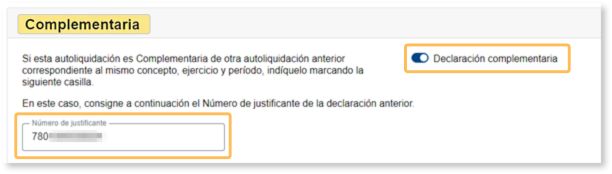
Form 780 also allows for supplementary declarations, in which case you must provide the supporting document number of the previous declaration, which begins with 780.
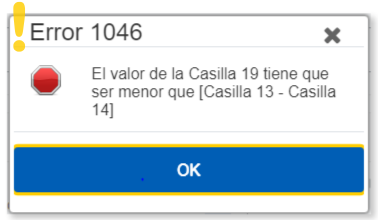
Depending on how you complete the form, it may be automatically validated after entering data into the form, and a pop-up window will alert you if there are any errors.
At the bottom is the button panel that offers the different functionalities of the form.
"Show/Hide Information" to choose whether or not you want to see the results of the validations.

"Delete statement" leave all the boxes blank, deleting all the information entered up to that point.

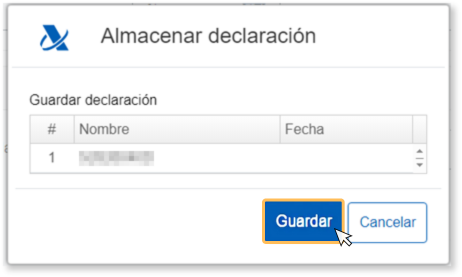
Load/Save. The option "Keep" allows you to save the data already completed even if the declaration has not been validated correctly; This way you can keep the data and continue filling it out at another time. The declaration will be saved on the server of the AEAT so you can retrieve it in the form using the button "Carry". 
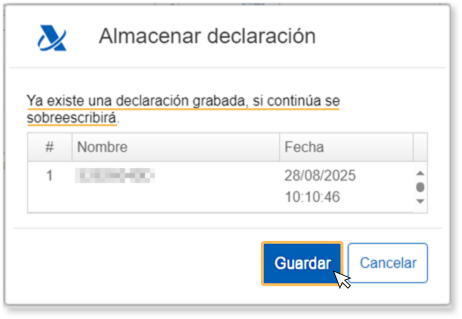
Only one session is saved, so if a previously saved statement exists, it will be overwritten and replaced by the current one.
From the button "Matter"You can import a file with the data adjusted to the record design published on the website in "Help", "Record Designs", "Other Models", "780 - Fiscal Year 2024 and following". You can also import a previously exported return from the same form. You'll find the "Export" button by clicking the "Formalize Income/Refund" button; therefore, the declaration should not contain any errors.

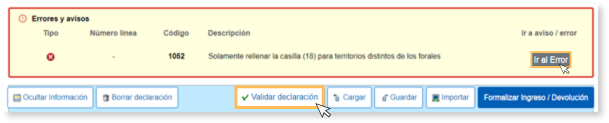
Using the button "Validate statement" You can check if there are any warnings or errors in the declaration. When validating the declaration, the list of errors and warnings detected will be displayed, which you can access for correction from the "Go to Error" or "Go to Warning" button next to the description of the fault.
If no errors are detected in the declaration, the description will state that there are no errors.

Once validated, you can formalize the settlement options from the button "Formalize Income/Refund".

From this same window you can obtain a file in format BOE which follows the registration design in effect from the button "Export", the file will be named NIF of the declarant, the fiscal year, the period and by extension the number of the model 780.
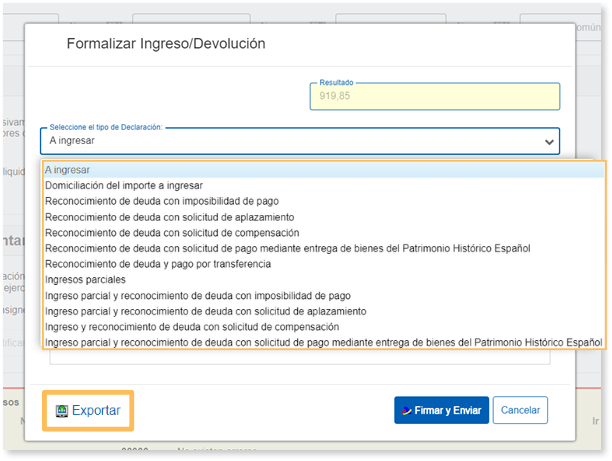
In the event that the result of the declaration is an income, the different options will be displayed in the drop-down menu. "Select the type of Declaration".
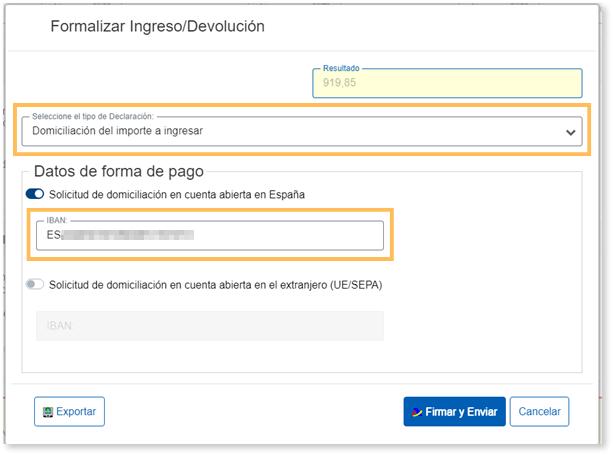
If the result is a deposit and you are within the deadline, one of the payment options is direct debit. You'll only need to enter the IBAN of the bank account you wish to have charged to. EU/SEPA accounts opened abroad are also accepted. You can check the deadline for direct debiting Form 780 in the taxpayer calendar published at the Taxpayer's Office.
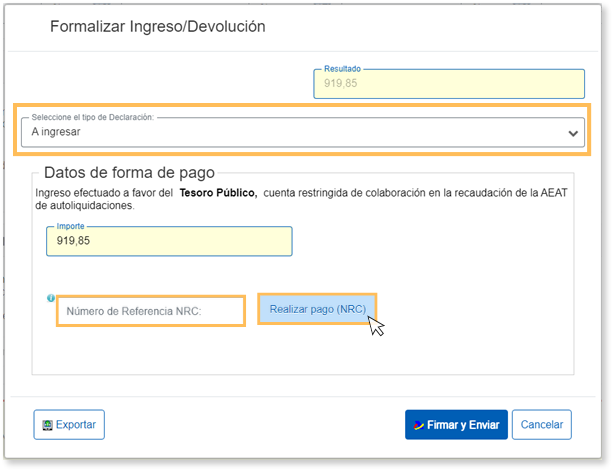
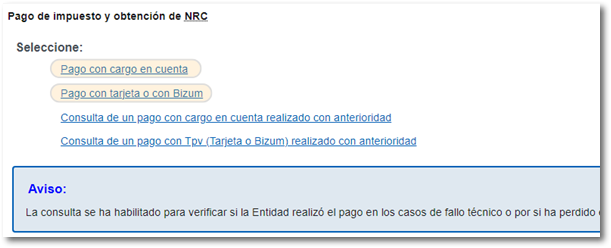
If the result is to be paid and you have not domiciled the amount, you must first obtain the NRC and then submit the self-assessment. The NRC is the Full Reference Number, a 22-character code that serves as proof of payment. From the form itself, in the "Make payment (get NRC )" button, you can connect to the payment gateway to automatically generate a NRC with the data contained in the declaration. Once you have obtained the NRC you must enter it in the "Reference Number NRC " field. You can pay by direct debit, card, or Bizum.
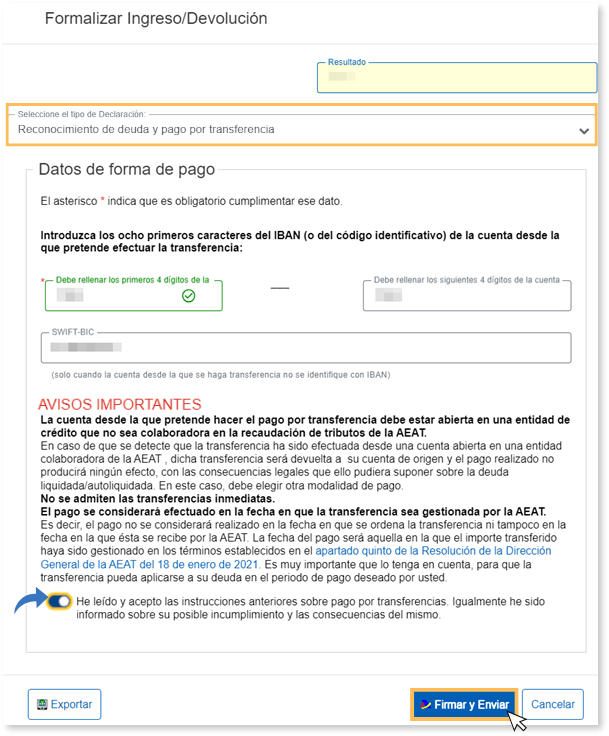
However, you can choose other forms of payment or recognition of the debt. Additionally, Form 780 includes the option to pay by transfer from a bank account at a non-collaborating bank. Select "Acknowledgement of debt and payment by transfer" from the "Select the type of declaration" drop-down menu.
In the "Formalize Income/Return" window, submit the declaration using the option "Sign and Send" .
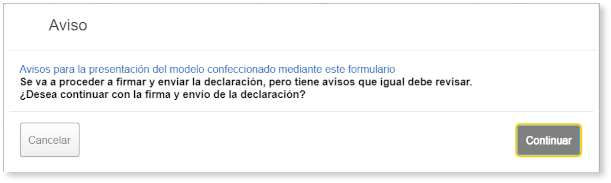
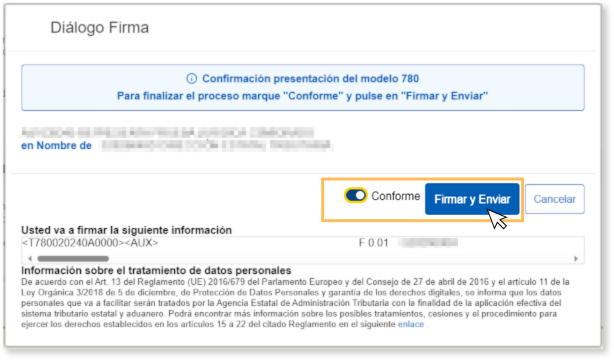
After a warning window, the signature component will be displayed; Check the "Agree" box to confirm submission of the declaration. The text box will display the encoded content of the declaration. You can continue filing the return by clicking "Sign and Submit."
If everything is correct, you will receive the response sheet that will show "Your submission has been successfully completed" and a Secure Verification Code so that the authenticity of the declaration can be verified in the Electronic Office in the section "Document verification using a secure verification code" located in "Notifications and Document Verification" (in the highlighted blocks), in addition to aPDF embedded containing a first page with the submission information (registration entry number, Secure Verification Code, receipt number, day and time of submission and presenter details) and, on subsequent pages, the full copy of the declaration.
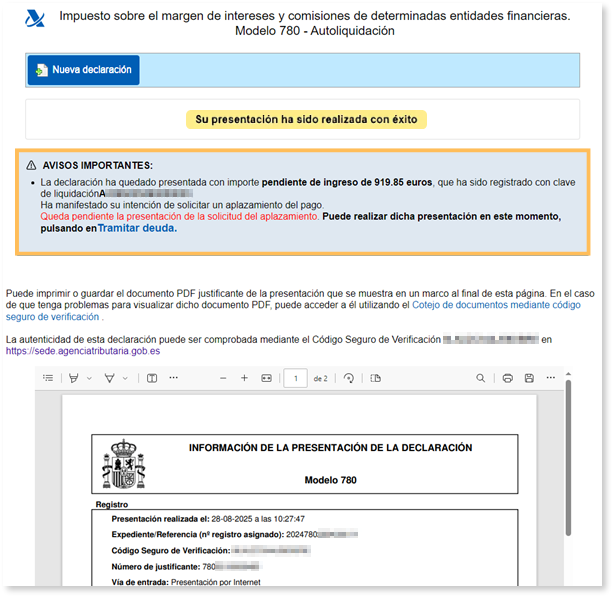
In cases where there is recognition of debt, a link will be displayed on the presentation response sheet to submit the deferral or compensation request. Click "Process debt".