Model 216
Skip the table of contentsPresentation of Form 216. Financial year 2024 and subsequent years
You can log in using Cl@ve, an electronic certificate or your electronic DNI. If you have any queries about how to obtain an electronic certificate or how to register with the Cl@ve system, please consult the information available in the related content.
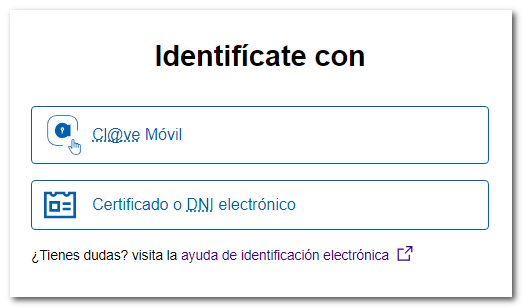
If the person filing the tax return does not have an electronic certificate, the person submitting the return must be authorised to file returns on behalf of third parties, either because they are registered as a collaborator or because they have been empowered to carry out this formality.
Once you are on the form, please complete the tax return, ensuring you include details in the fields marked with an asterisk, which are compulsory. Surnames, first name and profession are filled in automatically. Select the period from the drop-down menu.
If there are any financial details to be declared, these should be entered in the ‘Settlement’ section. The programme itself calculates the result.
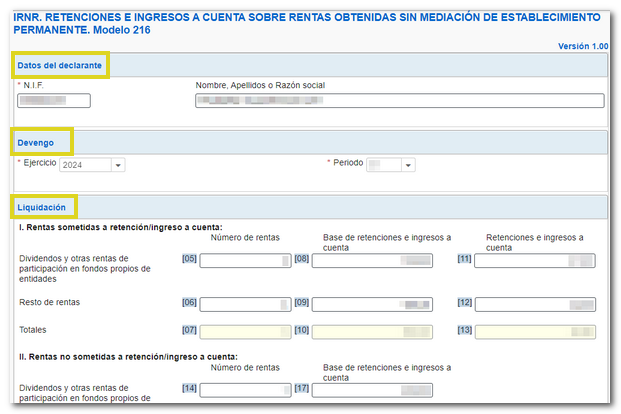
If this is a supplementary declaration, tick the relevant box and provide the supporting document for the previous tax return.

The available options are listed at the bottom of the form:

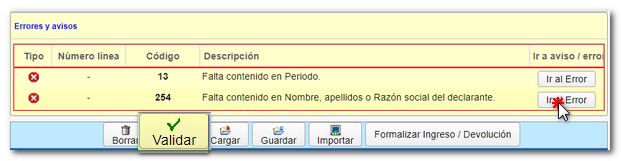
To check whether there are any errors in the tax return, click on ‘Validate’.
If there are any errors or warnings, the ‘Errors and warnings’ tab will appear, showing a description of the error or warning and a ‘Go to error’ or ‘Go to warning’ button, as appropriate, which will take you to the relevant box to amend or complete. If the tax return contains no errors, you will see the message ‘No errors’.
The‘Save’ button allows you to save the tax return you have completed so far on the AEAT (State Tax Administration Agency) servers in the format dat-216-tax identification number -ddmmaaaa.ses.
You can retrieve this tax return by clicking the'Upload' button from the folder where it was saved.


By clicking the‘Import’ button, you can load the file with the .216 extension that you previously exported from the form, or any other file created using an external programme that complies with the record layout for Form 216 for the relevant financial year.

If the details are correct, click ‘Confirm Payment/Refund’.

If your tax return results in a tax liability and you do not choose direct debit as your payment method, you must obtain an NRC as proof of payment. The NRC is the Full Reference Number, a 22-character code that serves as proof of payment and which contains, in encrypted form, the declarant’stax identification number (NIF), the amount, the form, the financial year and the period.
There are several ways to pay and obtain the NRC:
- By contacting the bank directly or via its website, if it offers this service.
- Via the Tax Agency’s payment gateway, either via the ‘Pay, defer and consult debts’ option or via the ‘Make a payment (Obtain NRC)’ button within the form itself.
By clicking the‘Export’ button, you can generate a file in the published logical design format, provided the declaration contains no errors; it is saved in the system’s ‘Downloads’ folder or in the directory specified by your browser for saving downloaded files.
This file is named using the declarant’s tax identification number (NIF ), the financial year and the period, followed by the form number (NIF_financial_year_period.216).
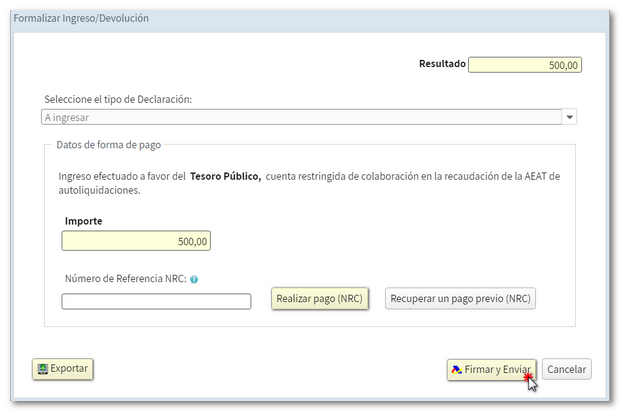

You also have the option of ‘Acknowledgement of debts and payment by transfer’ provided that the account is held with a credit institution that is NOT a partner of the AEAT (State Tax Administration Agency) in the collection of taxes. Please note that instant transfers are not permitted. Once you have submitted your tax return, the programme itself will provide you with instructions on how to pay.
To continue with the presentation, click on ‘Sign and Send’.

Once you have signed and sent the document, the confirmation window appears. Click ‘Agree’ and then ‘Sign and Send’.

A successful submission will always result in a confirmation page displaying the message “Your submission has been successful”, along with an embedded PDF containing a first page with the submission details (registration entry number, secure verification code, receipt number, date and time of submission, and details of the submitter) and, on the following pages, the complete copy of the tax return.
Depending on the type of tax return submitted, you will see a ‘Notifications’ section at the top containing relevant information; if a debt has been incurred, the amount, the settlement key for the debt and a link to settle the debt will be shown. with the text: "If you wish to apply for a deferral or compensation for the above amount, click on 'Process debt'".
