Income 2017
Skip information indexDraft/declaration processing service Income WEB 2017 with power of attorney
Those who have general and specific powers related to form 100 (100P or GENERALLEY58) may use the Renta WEB service to access the Income records of their principals.
You can consult the list of powers of attorney from the option "Catalog of procedures enabled for power of attorney" available in the "Power of attorney registry" section of "Collaborators".
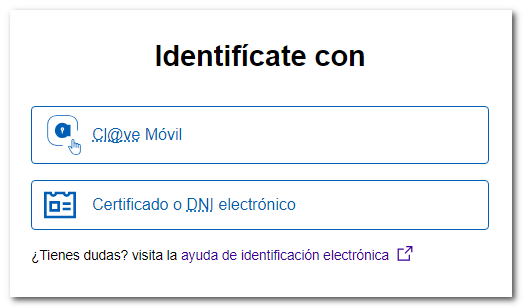
Click on "Draft/declaration processing service (WEB Income) 2017 with power of attorney" and identify yourself with your electronic certificate or with the Cl@ve system.
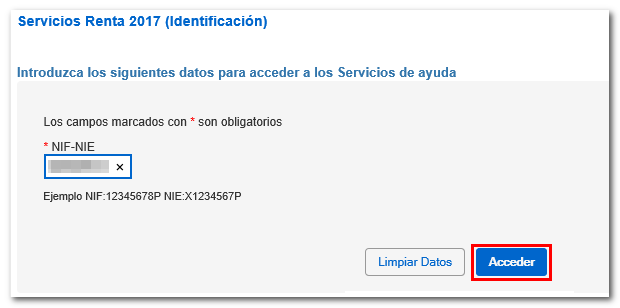
Please indicate below the NIF or NIE of the principal.
Once you access the file, you will have the following information:
-
The processing status of the declaration.
-
Available services include tax and census data queries, and the review and submission of draft tax returns or declarations (Renta WEB).
-
The history of the file where all the states of the file have been recorded and, if it has already been submitted, obtain a copy of the submitted declaration from the link "Recording of the declaration...".
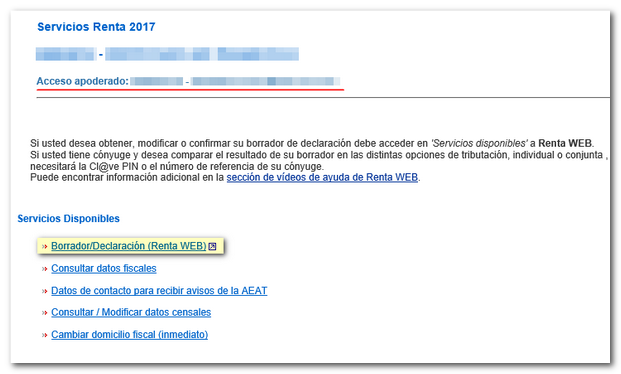
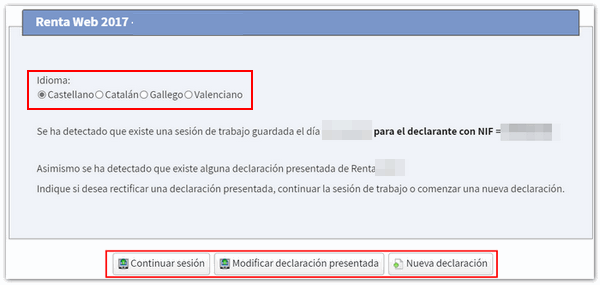
In "Available Services" click on "Draft/Declaration (Renta WEB)"; If you have already accessed Renta WEB at some other time, a pop-up window will inform you of the existence of a previous declaration, which you can recover from the option " Continue session ", modify a previously submitted declaration from " Modify submitted declaration " or start a new process from " New declaration ", incorporating the tax data again. You can also choose the co-official language in which you wish to make the declaration.
If this is your first time accessing the system, the identification data of the declarant and the other declarants of the family unit members will be displayed on the first screen. If it contains incorrect or inaccurate data or if specific information has been omitted, you must first modify it. Please note that marital status and whether you have minor children or legally incapacitated children subject to extended or rehabilitated parental authority cannot be modified later.
In the event that there is a spouse, if you do not wish to enter their tax data, you must check the box for the calculation of the individual declaration. Otherwise, you will not be able to advance since the identification of the spouse with reference or Cl@ve is requested.
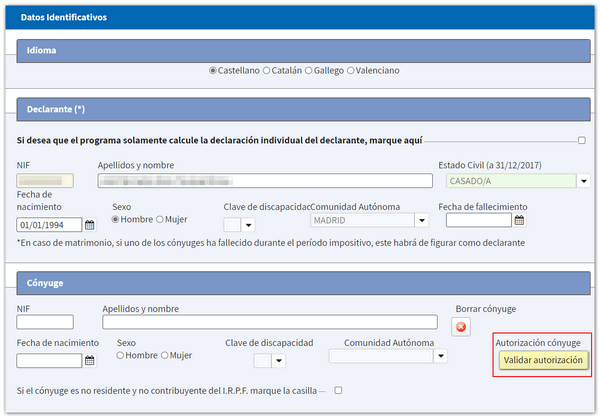
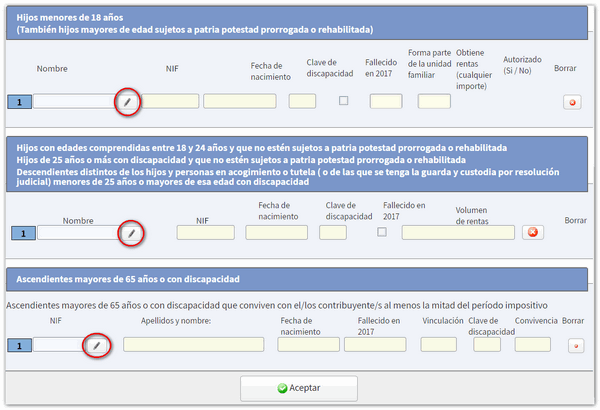
By clicking on the icon with the pencil symbol you can modify or introduce new members into the family unit. To delete them, press the cross icon. Once you have completed the data, at the bottom, click "Accept".
After accepting the identification data screen, if the application detects that additional tax data must be transferred to the declaration, follow the instructions in the following windows to incorporate this information. If you do not need to enter additional information to generate the declaration, you will directly access the summary of results from where you can check the result of the declaration for each modality and complete the declaration, if necessary.
At the top you have an additional menu from which you can view the tax data imputed for each declarant and download a PDF with the preview of the declaration of each declarant or joint declaration. Please note that in order to view documents in PDF format it is necessary to have a .PDF file viewer installed on your computer.
From "View transferred data" you can check which data has been incorporated in the declaration, which data has not been incorporated and the notes on the incorporation.
You also have explanatory videos and, in the question mark icon, access to the help manual for filing the Income Tax return.
From the "Return Summary" you can also save the return using the "Save" option and view the personal data from "Personal Data". By clicking the "Continue with the declaration" button, you will be able to access the different pages of the declaration to check all the data and continue completing the declaration.

Using the "Sections" button you can access the different sections of the declaration and use the arrow commands to move between the pages. Before filing the return, check if there are any errors in the completion by clicking the "Validate" button.
From this same window you can access the results summary or "Submit declaration" to complete the processing of the declaration.

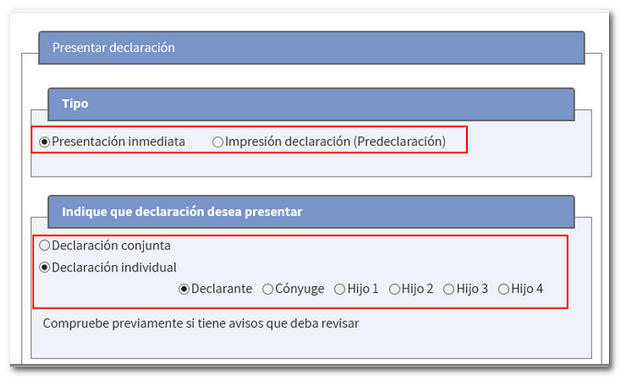
Select how you want to file the return: "Immediate filing" online or "Print return (Pre-declaration)" to file on paper. It also indicates whether it is an individual or joint declaration.
If the declaration results in a return you will only have to indicate the IBAN code , but if the declaration results in a deposit you must obtain the NRC and Complete it in the corresponding box or select other forms of payment such as recognition of debt with impossibility of payment or request for deferral, among others.
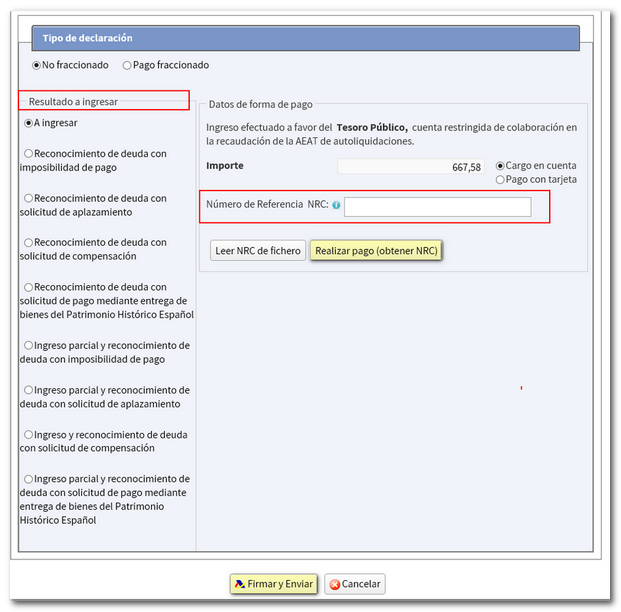
Finally, press "Sign and Send" to file electronically or "Generate pre-declaration" to file on paper.