How to file a draft or return through Renta DIRECTA
The Tax Agency (AEAT) makes available to certain groups of taxpayers a service called "DIRECT INCOME"whose objective is to facilitate the filing of Income Tax returns with all their tax data automatically transferable and that they do not need to modify the draft that is offered to them.
This option will be available within the taxpayer's Personalized Income Tax Services Portal along with Renta WEB.
Access is available on your own behalf and with authorization. It allows the authentication of the declarant, spouse and descendants, as well as the generation of the Income session available for filing, for all authenticated members of the family unit and obtaining the PDF for filing.
Even if you belong to the group, using Renta DIRECTA is not mandatory. You can always file your return from Renta WEB if you wish. If you are a taxpayer in the Income DIRECTA group and have not yet filed your tax return , you can always access this service, even if you already have an open session in Renta WEB.
It allows the following modifications:
- Modification of the tax allocation.
- Change of chosen payment method (split into 2 installments or not, direct debit, electronic payment by entering the NRC, payment at Bank or Savings Bank and card or Bizum).
- Modification of IBAN of the statement.
Any other modification and error correction must be done through Renta WEB.
However, this service is not offered within the personalized Income services portal to those taxpayers who, being part of the DIRECT Income group, have already filed their declaration .
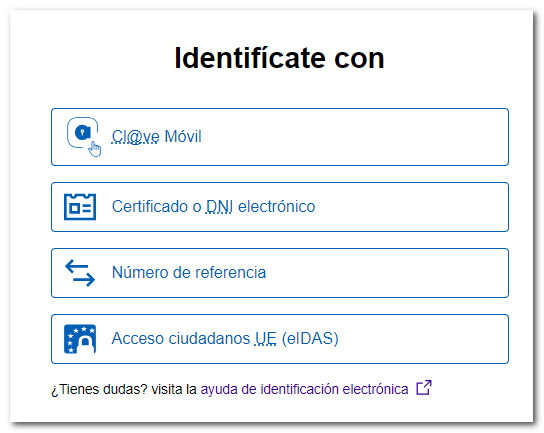
To access the service, click on "Draft/Return Processing Service (Direct Income Tax and WEB Income Tax)", and log in using Cl@ve Mobile Cl@ve, electronic certificate, DNIe, reference number of the current campaign or with the identification system for citizens of the European Union (eIDAS) using the identification of another country.
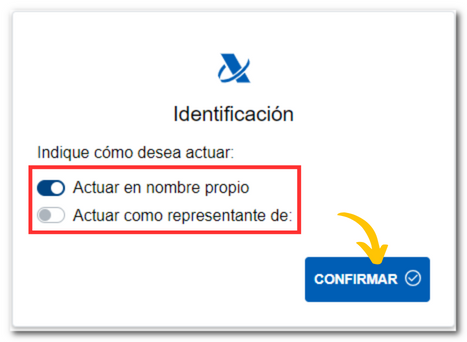
Next, indicate whether you are acting on your own behalf or as a representative and click "Confirm." If you use proxy access, the data of the person you are acting for is requested.
In the "Available Services" section, click on "Draft/Declaration Processing Service (Direct Income Tax and WEB Income Tax)."
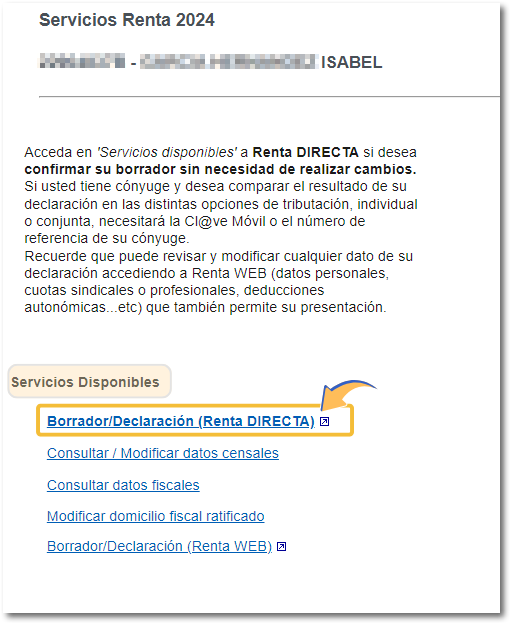
The link to Renta DIRECTA will be available to the primary account holder who enters the personalized services portal if they belong to the Renta DIRECTA group, regardless of whether their spouse belongs to the group or not.
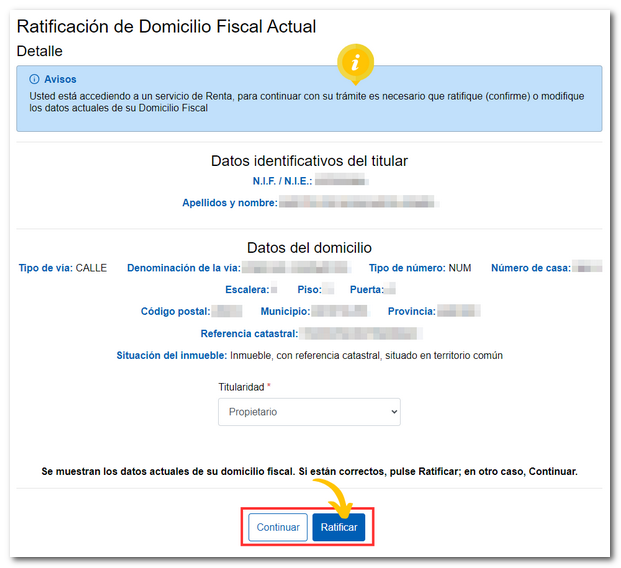
If this is your first time accessing the site or you haven't yet confirmed your tax address, a screen will appear prompting you to confirm it before continuing.
The first screen will display the declarant's " Identification Data" . There are two possible scenarios: the civil status of the declarant is known in the tax data, or it is not.
Declarant no marital status known from tax data:
If the taxpayer's marital status is not known in the tax data, you must select from one of the available options, keeping in mind that:
- The "CONTINUE WITH DIRECT INCOME CALCULATION" button at the bottom will remain disabled until you select a "Marital Status (as of 12/31/2025)"
- The data for descendants and ancestors is displayed empty on the screen. If you need to include them, you will need to access Renta WEB.
- The available options are: single, widowed, separated or divorced without children). If the family situation of the declarant without marital status is, for example, married where you also have to enter the spouse or some child or ascendant, you must go to Renta WEB to configure the family situation there.
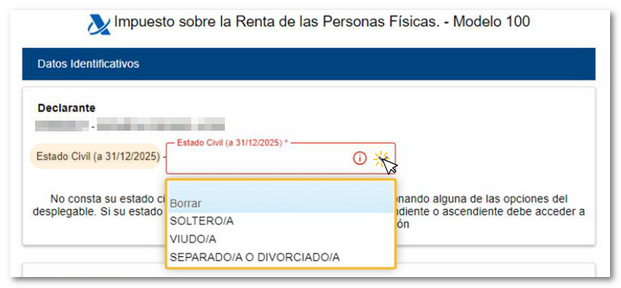
Declarant with marital status known from tax data:
In the case of a family unit, it is possible to identify the spouse (if any) or directly access the individual calculation.
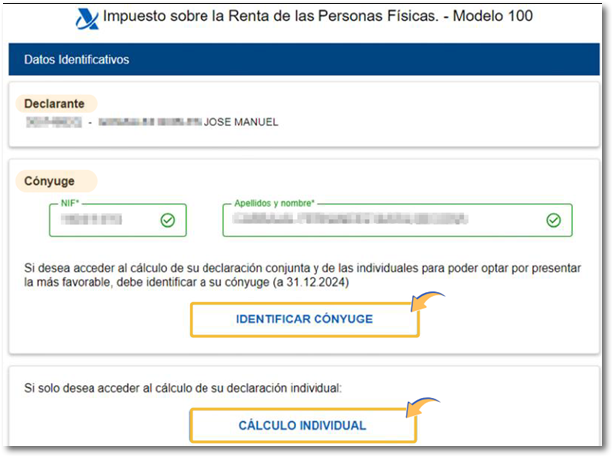
If your family situation is married as of December 31, 2025, you have several alternatives:
- If you do not authenticate your spouse, you can continue processing their individual return through Renta DIRECTA by clicking "Individual Calculation."
- If you authenticate the spouse, the application will attempt to transfer the data under these circumstances:
- If the spouse does not meet the conditions for a full automatic profile transfer, then neither holder can access Direct Income because the most favorable option cannot be calculated. In these cases, a notice appears asking you to go to Renta Web and complete both returns there.
- If the conditions are met, access to DIRECT Income is granted. From this exercise onwards, access is unified and it is later that the requirements are checked and access is first given to DIRECT Income or access is automatically granted to WEB Income.
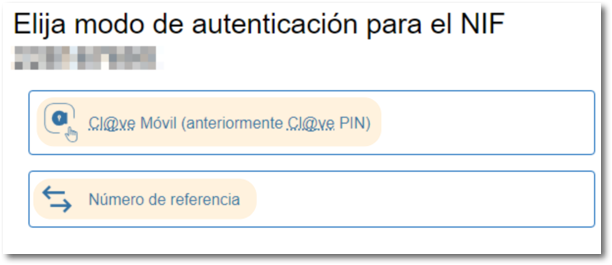
To authenticate the spouse, it will be necessary to use Cl@ve Mobile or reference number of the current campaign of the spouse.
You will then be taken to the " Statement Summary " screen where you can check the most favorable options. If you need to, you can access Renta WEB to modify any information on your tax return. Any changes you make there will be reflected in Direct Income.
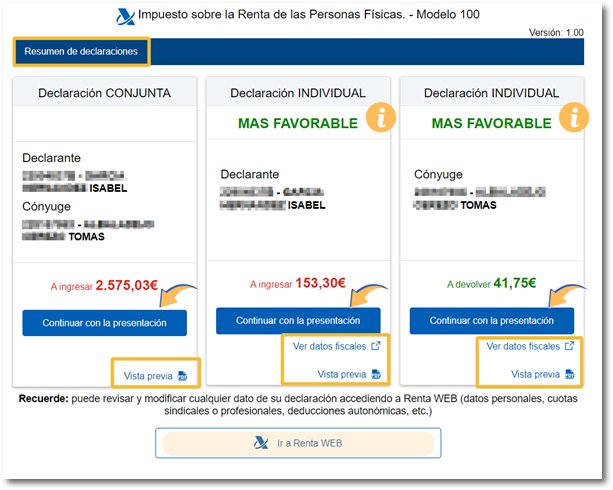
From this same screen you can " View tax data " and obtain a " Preview of the declaration " which is not suitable for filing but can be used as a reference.
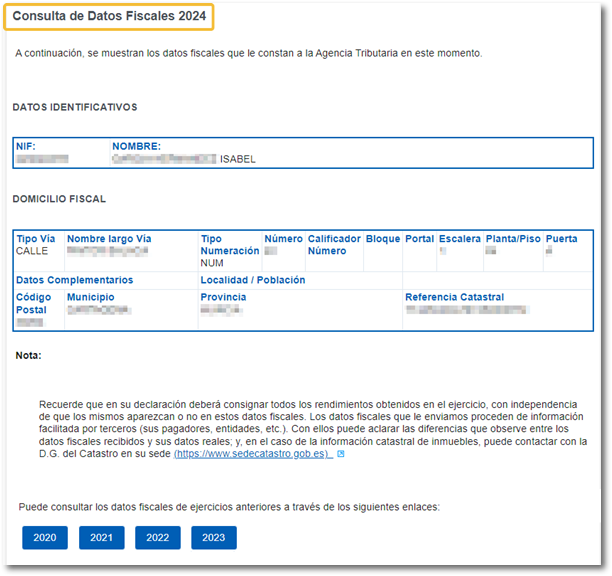
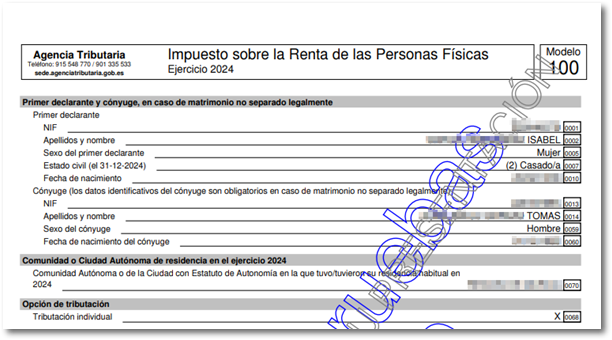
Click on the " Continue with declaration " button for the most favorable option.
Depending on the outcome of the declaration, you have the following options:
-
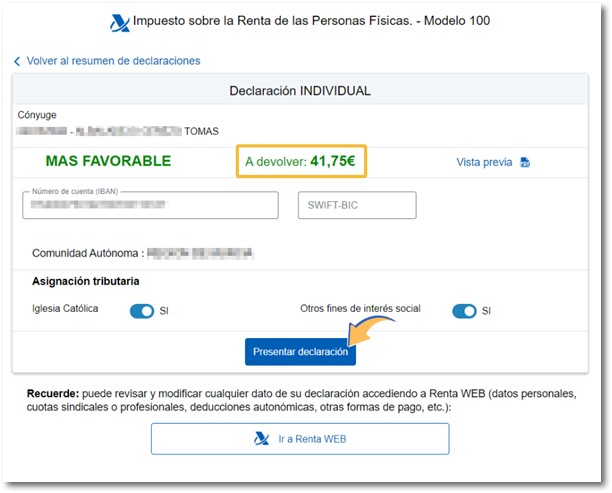
If the declaration results in a returnYou have three options: "Request refund by transfer", "Refund of transfer through a financial institution established abroad" and "Waiver of the refund in favor of the Public Treasury". In both refund request options, indicate the code IBAN where your refund will be deposited.
-
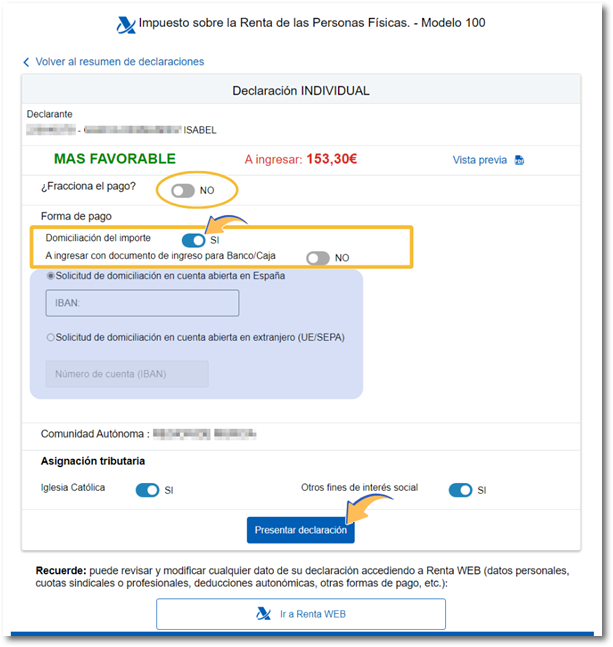
If the declaration results in a incomeYou will be able to select the payment method, with the same options offered as in Renta WEB. By default, the payment will be split into two installments and both will be debited, but you can modify it and select another payment method for the first installment or not split it at all. If you do not select direct debit for the second installment, the option is "To be paid" using form 102. Please note that form 102 is not generated automatically; you must download it from the available procedures for Income Tax 2025 on the Electronic Office website, by November 5, 2026.
Among the available entry options are:
-
Direct debit of the amount. Enter the direct debit code IBAN , it will be available until June 25. Initially, the code IBAN that you indicated in the declaration of the previous year will appear, and you can change it to another one of your interest or direct debit it from an account opened abroad ( EU/ SEPA ).
-
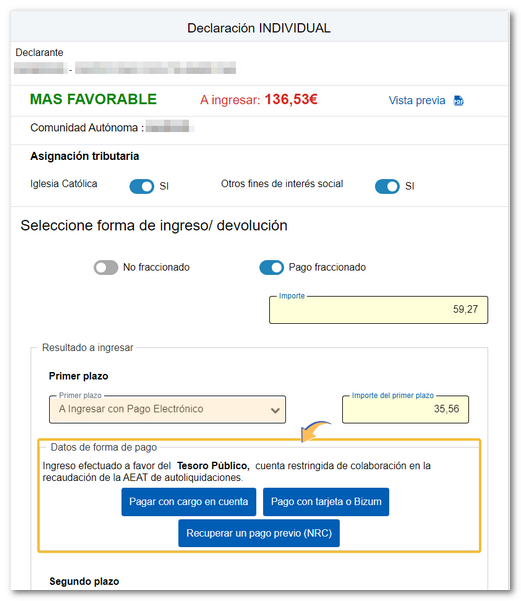
To enter with Electronic Payment . In this case you can choose from three payment methods:
-
Payment by direct debit from account . It will connect you to the payment gateway to obtain the NRC at that time, charging the amount to the account you assign. Once the payment has been made, transfer the NRC automatically to Renta WEB to finalize the submission (this option will be available if you access with a certificate, DNIe either Cl@ve Mobile Cl@ve)
-
Payment by card or Bizum . It will connect you to the online payment platform, where you will be asked to enter either your card details or the phone number where the payment request will be sent via Bizum, in the bank's app.
-
Recover a previous payment (NRC). You must make the full payment from your Bank, generating the NRC proof of payment, either at their offices or through electronic banking offered by your bank. You will then need to enter the NRC in the "Reference number NRC " box.
-
-
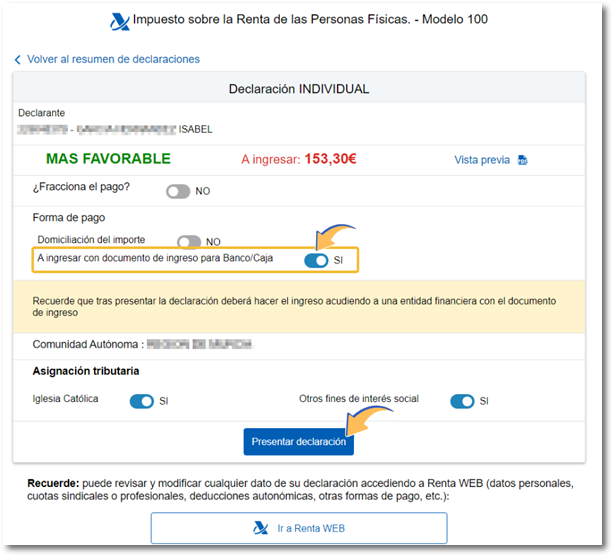
To be paid with Bank/Cash Deposit Document. If you select this option, after filing your return, you must make the payment by going to a financial institution with the payment receipt you obtained.
-
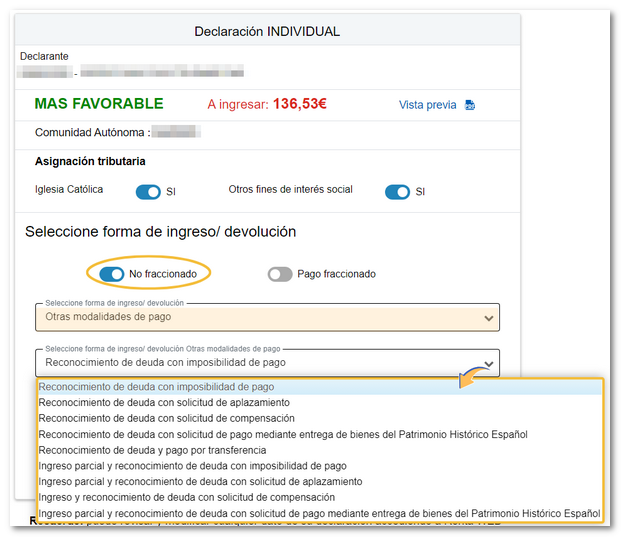
Other payment methods . If you do not split the payment, you may use, for example, the recognition of debt with impossibility of payment, a request for deferment or payment by transfer to an account of a Non-Collaborating Entity, among others.
-
-
If the declaration has as result zero (€0.00) It will be a negative declaration that you can submit by clicking "Submit declaration".
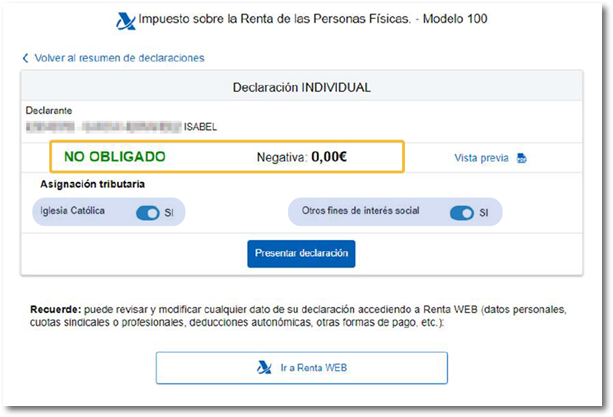
From this same screen, you can indicate the "Tax Allocation." By default, the option you selected in your last tax return will be selected, although you can modify it by selecting one, two, or none.
Then click on " Submit return ". After clicking, the signature and sending window is displayed. Click "Yes, submit."
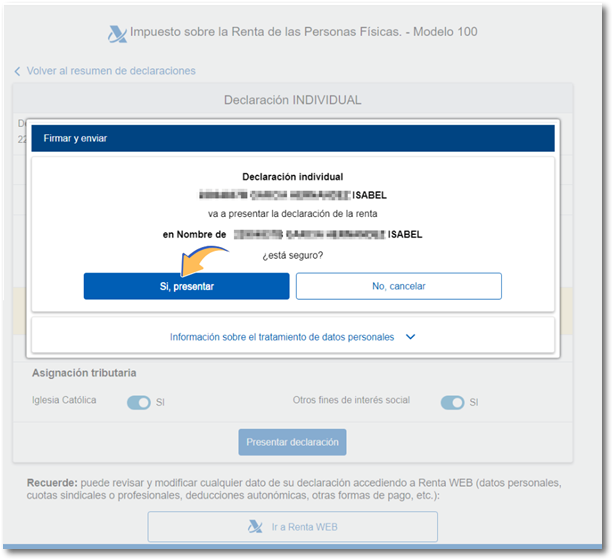
You will receive the response "Your submission has been successfully completed" and you will be able to view the submitted declaration, obtaining a PDF with proof of the declaration on the first page where the registration and presenter data are indicated, and then the complete declaration. From this same window you can continue with another family unit declaration, if applicable.
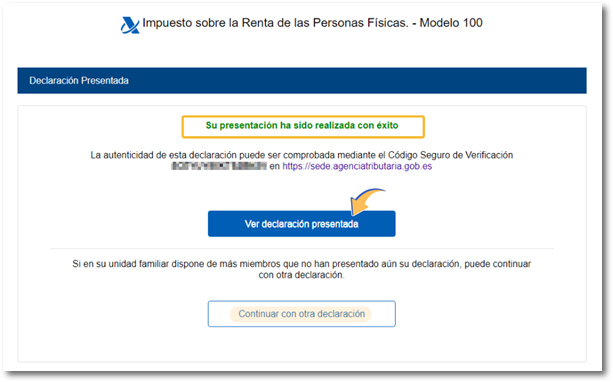
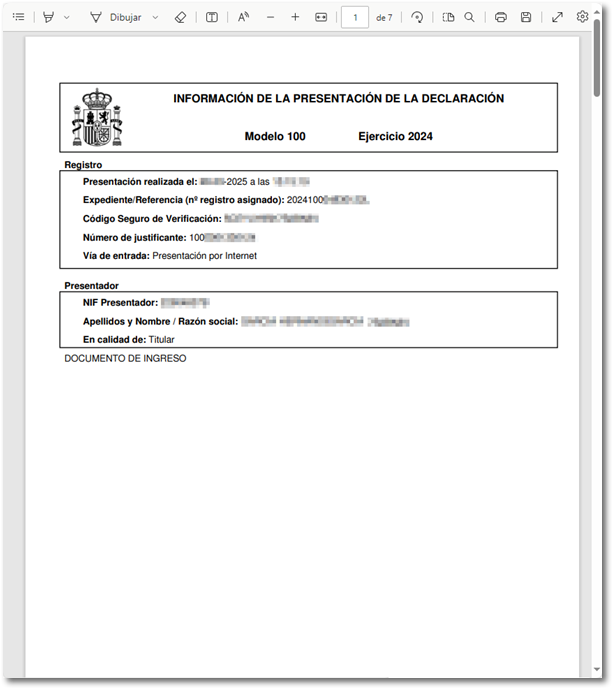
If you have filed an individual return in which you have authenticated your spouse (or children who receive income), clicking "Continue with another return" will allow you to return to the "Return Summary" screen to file the individual return for the other taxpayer.
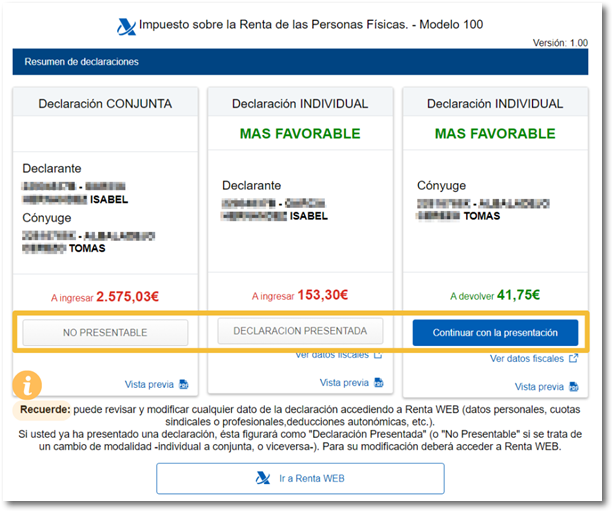
In the Declaration Summary, once your declaration has been filed, it will appear as "Return filed" (or "Not fileable" if it is a change of form, from individual to joint or vice versa). To modify it you must access Renta WEB.