One-click Income Tax Return
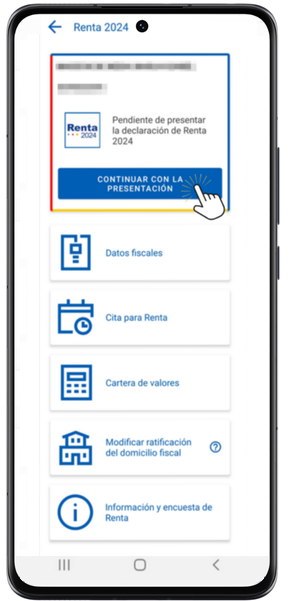
The APP- AEAT allows taxpayers for whom the AEAT has all the data to file their Income Tax return with a single click. In this case, once identified in the application, from the "Procedures" section access "Income", "Income 2025" and click on "Continue with the presentation".
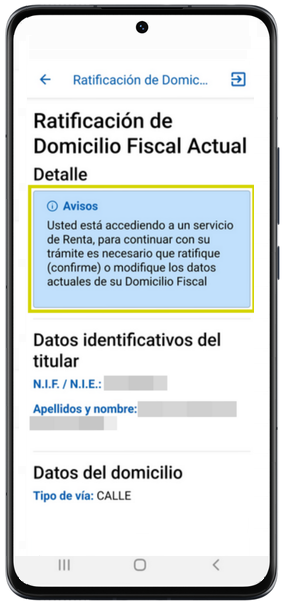
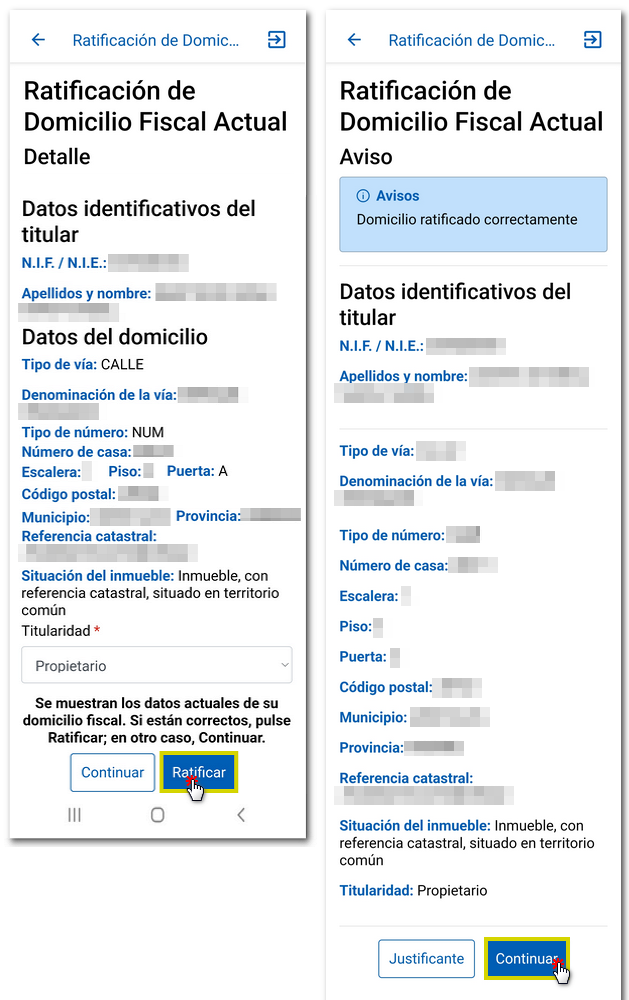
If you have not confirmed your tax domicile, you must confirm it to access the processing of the declaration. The identification data of the owner and the current habitual residence will be displayed. If they are correct, click "Ratify"; Otherwise, click "Modify". Select the ownership of the property, by default the one indicated in the previous exercise will appear; If you select the "Tenant" key, you must indicate the NIF of the landlord. Once the current habitual residence has been confirmed, you will receive a receipt and can continue with the process. Click "Continue".
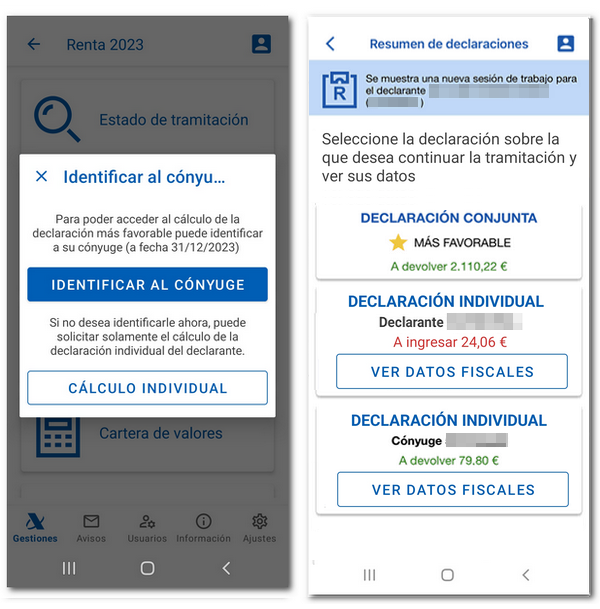
The application will offer the declarations available in your work session (individual of the declarant, and if applicable, of the spouse and children) for those declarations for which the AEAT has the necessary information to perform the calculation, knowing which is the most favorable (individual or joint taxation option).
You can continue with the previously saved work session or, if it does not exist, you will be asked to calculate the declarations (if you have a spouse, they must be identified as a user in the application, and if they are not yet, you will be offered the possibility of identifying them at that moment or requesting the calculation of the individual declaration). In addition, you can ratify the tax domicile of your spouse and descendants (if you have a spouse and descendants and their tax domiciles are not ratified), allowing you to modify and ratify them.
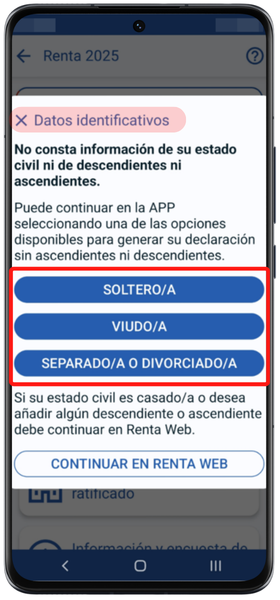
It is possible that the civil status of the declarant is not included in the tax identification data; in this case, you must select from one of the available options: single, widowed, separated, or divorced. If your marital status is married and you wish to add any descendants or ascendants, you must click on "Continue in Renta WEB". Select the one that applies to you to continue.
From the statement summary You can see the result of the declaration. For each declaration, the declaration type (individual or joint) will be indicated, whether it is the most favorable option, and whether the person is not required to file the declaration. he ID card/NIE of the members of the declaration along with Access to the tax data of family unit members who have individual tax returns in the work session and preview the return in PDF using the "Preview" button. Check the result of the declaration, si is to return (in green), to enter (in red) or zero result "0" (in black).
If it is detected that you need to provide additional information, you must do so in Renta WEB.
You can select any declaration to continue with the process. Click on "Continue with presentation" for the option you wish to present.

For the group of mutual members who have not submitted the refund request form of PIT For contributions to mutual societies in accordance with DF16 of Law 7/2024, a notice will appear so that they can submit the application form at that time.
Before submitting your tax return, the application will allow you to view your data (tax return result, name, surname and ID card/NIE of the members of the declaration together with their Autonomous Community), incorporate or modify the IBAN and the tax allocation (Catholic Church and Social Purposes).
If you are not required to file a tax return, you will receive a message in the "Notices" section: "According to the information we have, you are not required to file your tax return."
In returns The code will be displayed. IBAN of the account you indicated in the previous exercise, however you can always modify that information by clicking "Change" and selecting "To a Spanish account" or "To a foreign account" EU/SEPA"or, include the IBAN corresponding if not specified.
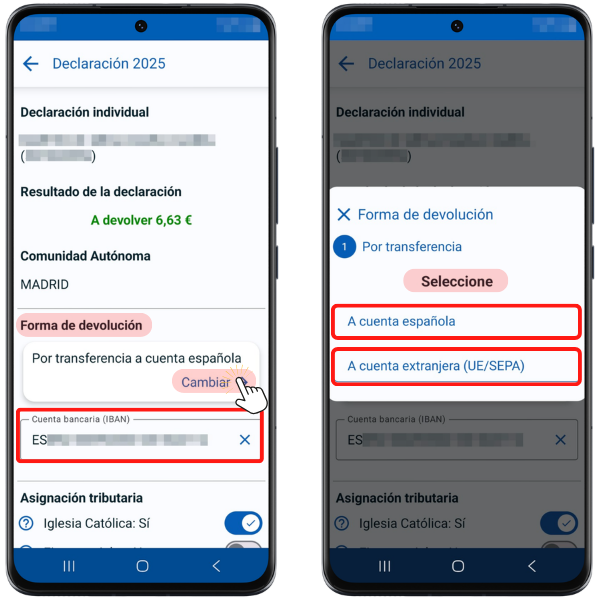
In declarations to be entered:
Depending on what is shown in the APP for each declaration, you can modify the installment plan and the payment method according to the direct debit or installment period you are in.
If you wish to change the payment method, click on "Change" in the "Payment Method" section and windows will appear allowing you to indicate whether or not you wish to split the payment. Depending on what you select, you will get some options or others. Finally, click "Save changes".
NOTE:
- During the direct debit period (until June 25), the payment will be split into two installments by default, with the amount of both direct debit payments.
- Once the direct debit period has ended, the non-split payment option will be displayed by default.
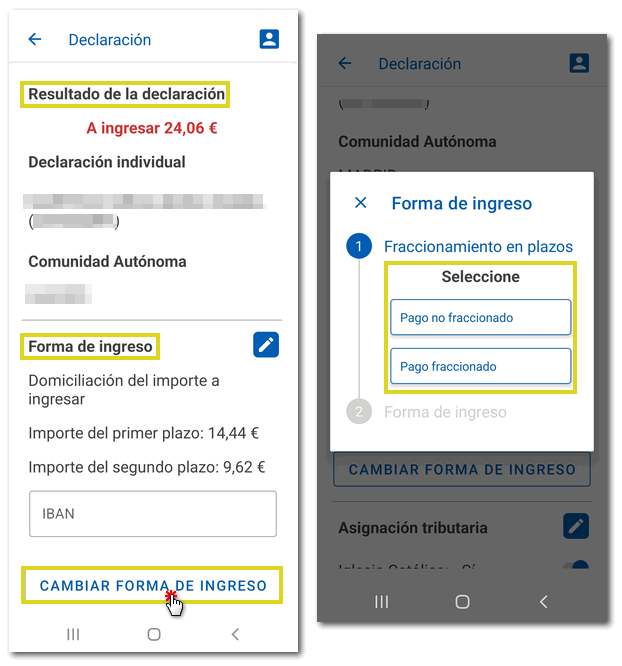
Also, if you have indicated a different payment method in Renta WEB, specifically for installment or non-installment payment methods, when returning to the APP-AEAT You will be able to submit your declaration in the manner indicated.
In the "Bank account" field, the account entered in the previous year will appear, but if there is no IBAN account established, you can enter it directly.
If there is already a bank account IBAN listed in this field, please verify it; If you wish to change it, press "Change" and select "To a Spanish account" or "To a foreign account" EU/SEPA"and enter the new account" IBAN. After making changes, click "Save Changes". Validations on the IBAN field are performed when you click "Save Changes".
-
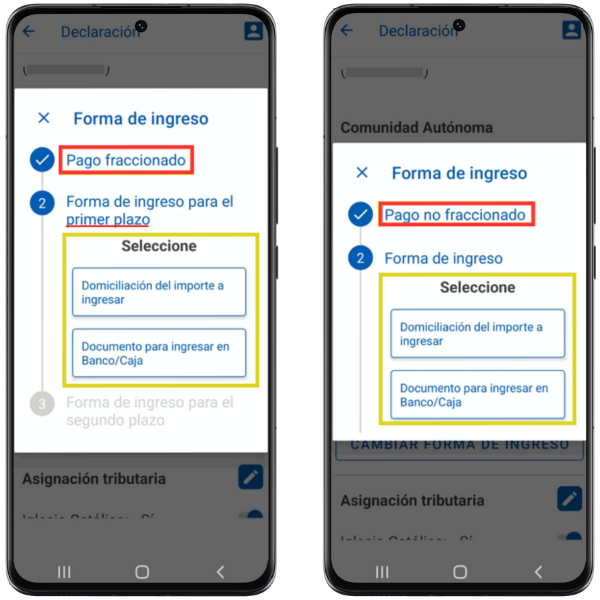
Pay fractional in two installments, available options:
- Direct debit of both installments from your bank account.
- First installment with electronic payment by card or Bizum or by entering the NRC proof of payment from the "Retrieve a previous payment" button (NRC), and second installment by direct debit.
- First installment with payment at Bank / Cashier and second installment of the direct debit payment.
-
Pay NOT fractional, single payment:
- Direct debit from bank account in a single payment.
- Electronic payment by card or Bizum, or, Recover a previous payment (NRC) introducing the NRC proof of payment.
- Bank or savings bank deposit slip.
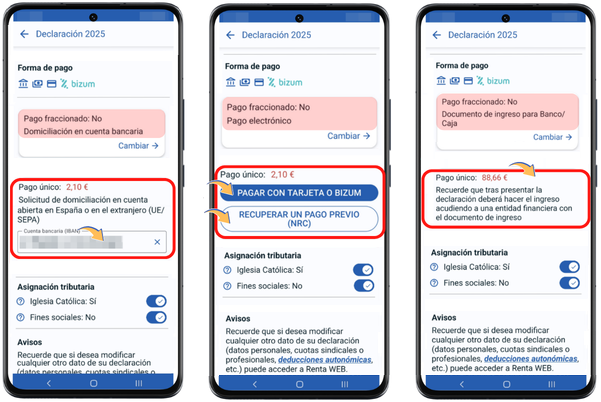
These payment options can be modified by clicking "Change" in the "Payment Method" section.
You can also modify the tax allocation for the Catholic Church or Social Purposes in the "Tax Allocation" section. Move each button to activate it to "Yes" or "No", depending on your choice. Once modified, press "Save Changes".
Before submitting, you can review the data included in the declaration by obtaining a preview in [format]. PDF, with the watermark "Draft not valid for submission".
Also, from this window you have the option to consult your tax data again.
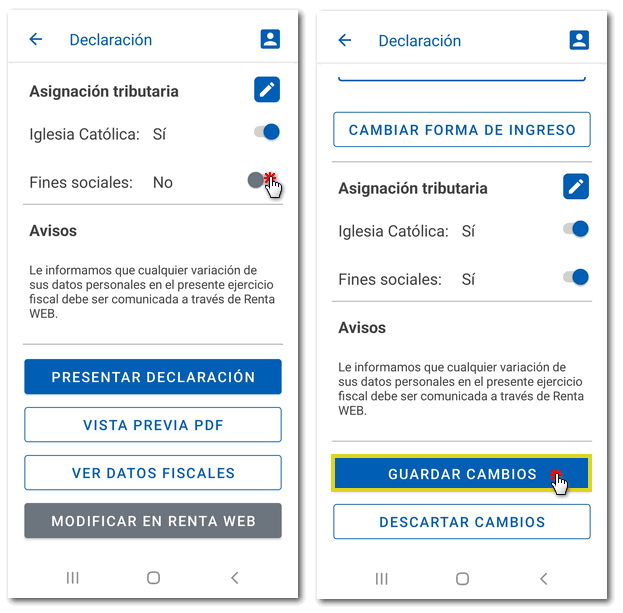
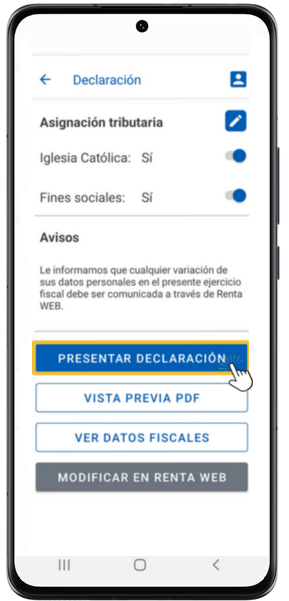
If all the information is correct, click "Submit declaration".
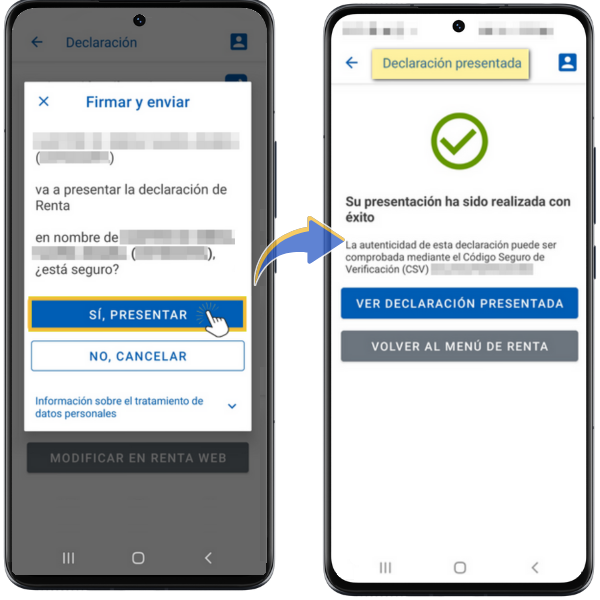
You can then confirm that you wish to file the return by clicking "Yes, file." In addition, in this same window you will have access to information about the processing of your personal data.
If the submission has been made correctly, a text will appear indicating that the submission was made successfully and the Secure Verification Code ( CSV ) will be offered, which allows you to obtain a copy of the document from the "Document verification using a secure verification code ( CSV )" section of the electronic office.
Once you have filed your return, click on "View Filed Return" to get the PDF of the return you just filed. At that time you are offered the option to view it or save it to the device.
Depending on the type of presentation, you may find these notices:
- In declarations submitted with the option of depositing at a Bank or Savings Bank. Remember that after submitting the declaration you must go to a financial institution to make the payment within the deadline. If you file your return late, you must pay on the same day of filing to avoid being charged an additional late filing surcharge for not paying on the same day of filing.
- For presentations with several members in the family unit. If your family unit includes other members who have not yet filed their declaration, you can continue with another declaration. Otherwise, you can return to the Rent menu.