Methods of payment and filing Form 200
Skip information indexFiling of form 200 of 2025 with payment by card or Bizum
If the result of the declaration is positive and you do not opt for direct debit or for total or partial recognition of the debt, you must make the payment and include the NRC (proof number of the operation) in the field available in the window "Formalize Payment / Refund" . One of the options to obtain the NRC is the payment by card or Bizum.
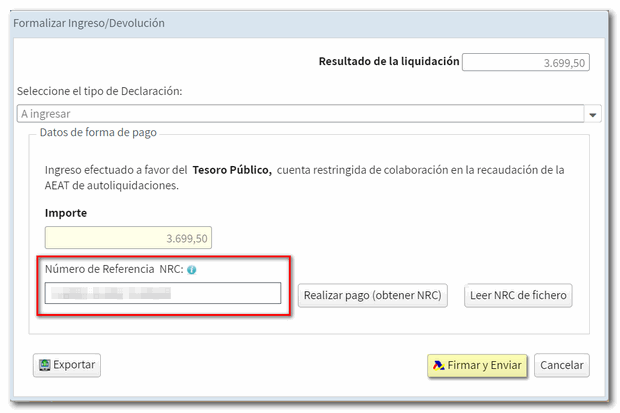
To select the payment method by card or Bizum, once the declaration is validated without errors, press the button "File a statement".

Next, in the "Select the type of Declaration" drop-down, choose the option "To enter" . Field is enabled "Reference Number: NRC " to include proof of payment once the payment has been made. This is a 22-digit code that can begin with 200 or 206 depending on the characters selected at the beginning of the declaration.
You can also get the NRC at the moment using the option "Make payment (NRC)".

This action links to the payment gateway of the AEAT, select "Payment by card or Bizum".

In the next window, the data for the fiscal year, period, NIF of the declarant and amount will be automatically transferred from the declaration. Under "Payment Method," select one of the two available options: "Payment by card" or "Payment with Bizum," and then click "Accept details and Continue."

A summary of the data entered will be displayed; Please check that the information is correct, as once the deposit has been made, you will not be able to cancel it online. If it is correct, check the "I agree" box and press the "Sign and Send" button.

Next, depending on the type of payment you select, by card or Bizum, you'll need to follow these steps.
-
Card payment
You will receive a summary of the payment details you are going to make to the State Tax Administration Agency (SPAIN), including the amount, date and model, among others. Enter the card number and any other requested information. Click "Pay" and continue with the instructions provided by your financial institution. Once the payment has been made, return to the AEAT page.

-
Payment with Bizum
Enter the phone number registered with Bizum and click the "Continue with purchase" button. Please note that you must have your mobile phone nearby to complete the payment, as you have 4 minutes to complete the transaction.


Next, on the phone, the bank where we have active Bizum will send a notification with the details of the pending Bizum that you need to authorize; Follow the instructions in your bank's app. The appearance of these windows may vary depending on the bank with which the Bizum service is associated.

If everything is correct, you will be able to see the assigned NRC on the screen. It is a 22-character code generated as proof of payment for online tax return filings. On this page you will have 2 options:
-
"Proof of Payment": you will download in PDF the receipt of the charge to the account with a summary of the payment details.
-
'File Tax Return': This option will link you to the 2025 Companies model 200 to finalize the submission.
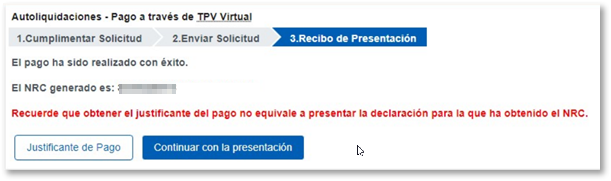
In addition to using the link available in form 200, you can also access the AEAT payment gateway available in the "Pay, defer and check debts" section of the Electronic Office.
You can also manually include the NRC if you have previously contacted your Bank providing all the data related to the model you want to submit. You do not need to provide any form but only the data used to generate the NRC :
-
NIF of the taxpayer or the parent company or group head entity
-
Period to which the declaration corresponds = 0A
-
Model and fiscal year:
-
Corporate Tax = form 200. Fiscal exercise: 2025.
-
Corporate Tax for Non-Residents (permanent establishments and entities under the income attribution regime established abroad with a presence in Spanish territory) = form 206. Fiscal exercise: 2025.
-
-
Self-assessment type = "I", Income
-
Exact amount of income in euros
Note: If on the first page of the declaration (Characteristics of the declaration) you have marked box 00021 (permanent establishment) and box 00046 (Entity under the income attribution regime established abroad with a presence in Spanish territory) the bank must generate the NRC for model 206 and not for model 200.
Once the payment has been made and the NRC has been moved to the corresponding field, you can submit the declaration by clicking the "Sign and Submit" button.
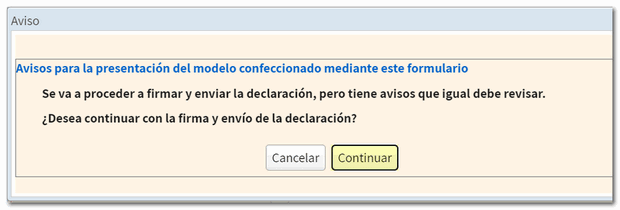
If there are no errors that need to be corrected, a confirmation notice will appear confirming signature and submission. If you want to check pending notifications, click "Cancel". To continue with the presentation, click "Continue".
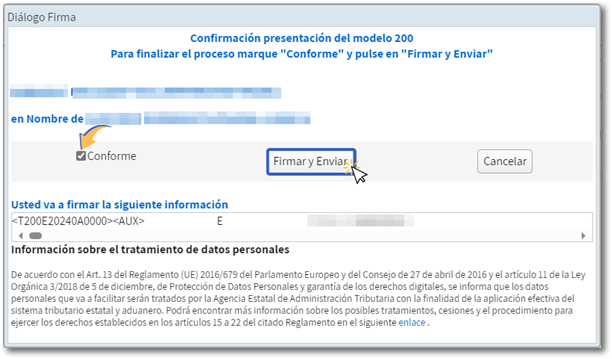
To complete the process, check "I agree" and press "Sign and Send."
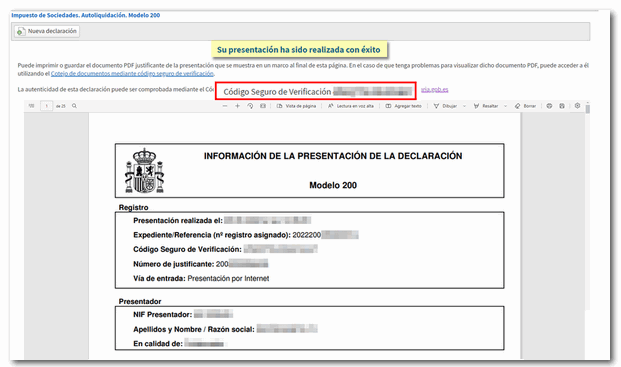
If the submission has been made correctly, a response page will be displayed with the secure verification code ( CSV ) and the PDF with proof of submission and a copy of the declaration.