WEB Societies: Access, processing of model 200 and WEB Open Companies version
Skip information indexHow to modify a previously filed return - Corrective self-assessment - Higher income
If you have submitted a Form 200 declaration with a result to be returned or paid and you want to correct it to declare a higher income, you must submit a corrective declaration.
Access the services of Companies Campaign 2025 to rectify, complete or modify a previously submitted self-assessment. It incorporates the data included in the previously submitted self-assessment that is not subject to modification, those that are subject to modification, and those newly included.
When accessing it is necessary to choose the electronic certificate or Key Holder's Mobile Cl@ve (only for individuals), if the presentation is made on his/her own behalf. Identification with is also possible eIDAS for citizens of the EU:
Fill in your identification details, select the fiscal year for which you want to submit the corrective self-assessment and click on "Accept".
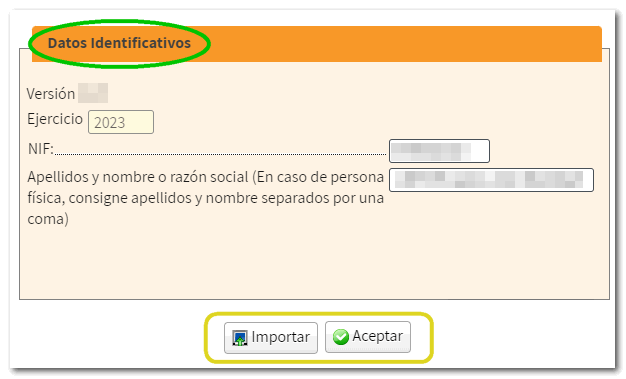
If you have generated a .200 file with the correct record layout, use the option "Matter".
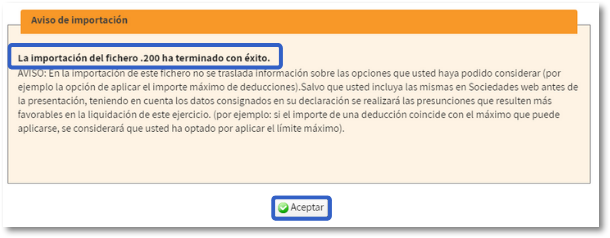
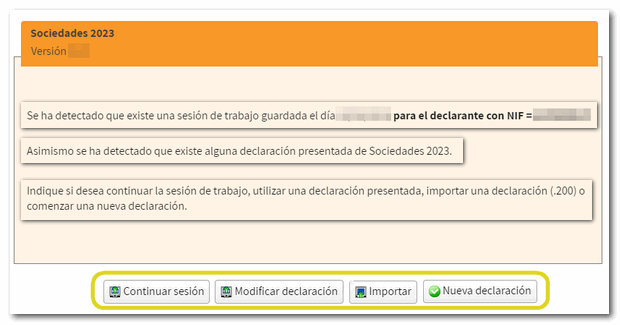
It will be detected that a return has already been filed and the button " Modify statement".
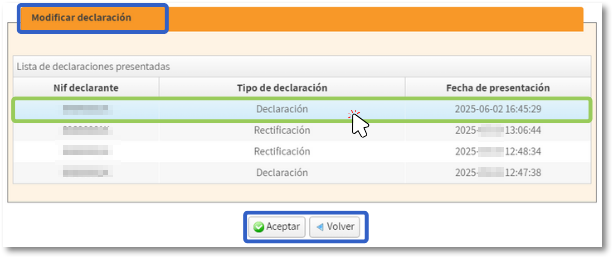
If there is more than one previous declaration submitted, you must choose which one you want to recover.
Once you've logged in, the screen will show you the self-assessment you submitted.
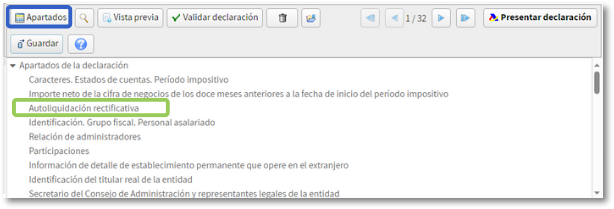
Locate in the tool button panel "Sections" and select "Correcting self-assessment".
In this section, you must select the corrective self-assessment option, enter the receipt number for the previous self-assessment, and indicate at least one of the reasons for the correction.

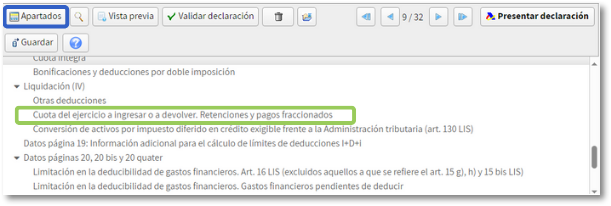
Correct the data you consider appropriate and when you're finished, locate the option "Financial year fee to be paid or refunded" again in "Sections." “Withholdings and fractional payments.”
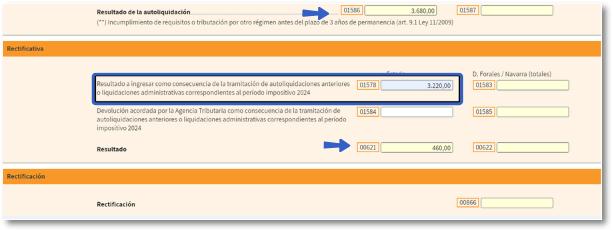
In the "Correcting" section, you must enter the positive amount from box 01586 of the self-assessment being corrected in box 01578.
The result of the correction will be automatically calculated in box 00621.
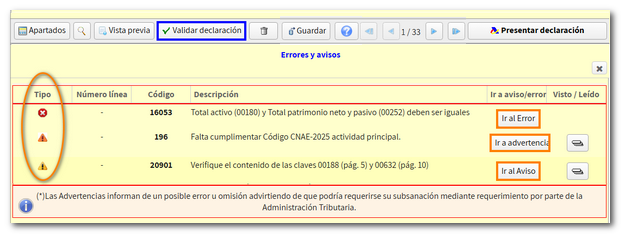
Press "Validate declaration" To check for errors, warnings and/or notices and to confirm that everything is correct, press "File a declaration".

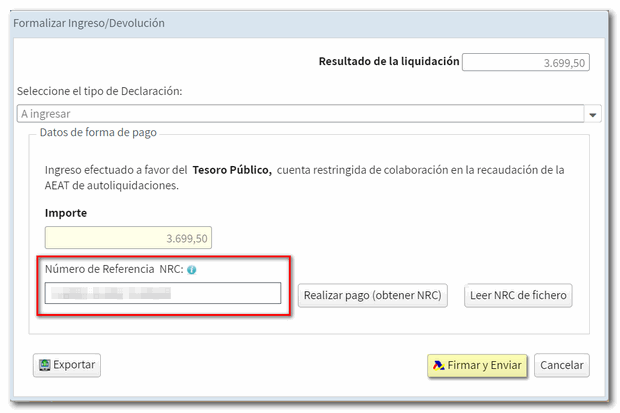
Select the declaration type to indicate how the payment will be settled.
As this is a corrective statement, it is not possible to domiciliate corporate tax. You must choose one of the other available payment methods.
The option of income via NRC, requires that you first obtain the NRC and then submit the self-assessment. From the form itself you can connect to the payment gateway to automatically generate a NRC with the data contained in the declaration. From the "Make payment" link (NRC)" You will be linked to the payment gateway, where you can select payment by bank transfer, card, or Bizum.

You can also obtain the NRC using your bank's online banking service or visiting a branch of your bank and providing all the information related to the self-assessment. Then enter the NRC in the "Reference Number" field NRC" and press "Sign and send"
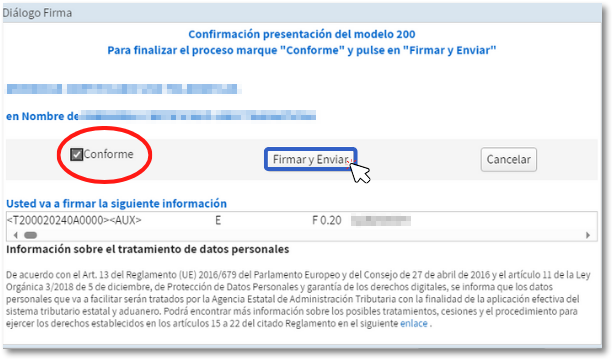
You may see a screen with pending notifications so you can review them and continue with your presentation.

Press "According" and "Sign and Send" to conclude the presentation.
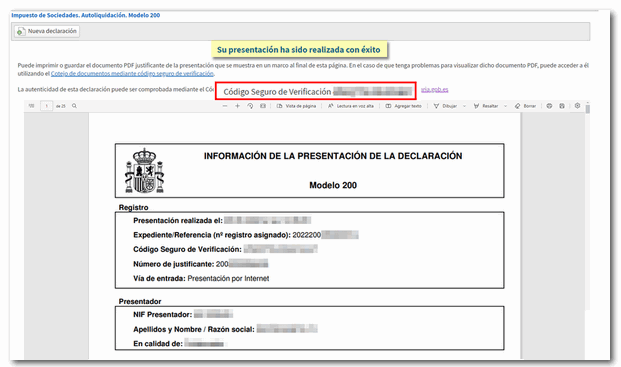
The report of the submitted declaration is displayed on the screen in format PDF with the CSV of the statement.
You can choose some type of Acknowledgment of debt. For debt recognition options that involve partial payment (make payment of part of the amount and process the remaining amount as debt), you must obtain the NRC proof of payment from the "Make payment (get NRC )" option that will be enabled next to the NRC field. If you have previously contacted your Bank, you can include it directly in this field.
Don't forget to print or save the proof of submission.