Free VERI*FACTU application from the AEAT
Skip information indexConsultation of invoices
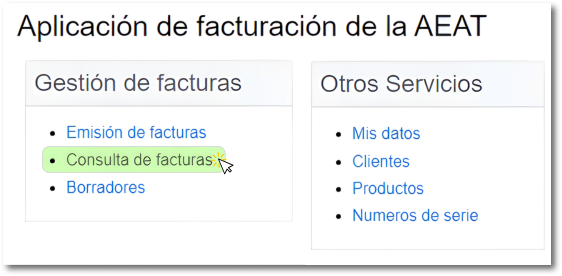
To locate an invoice already submitted, access the link "Access the Billing Application of the AEAT", identify yourself through Cl@ve Mobile Cl@ve or certified/DNI electronic and in the main menu click on "Invoice Inquiry".
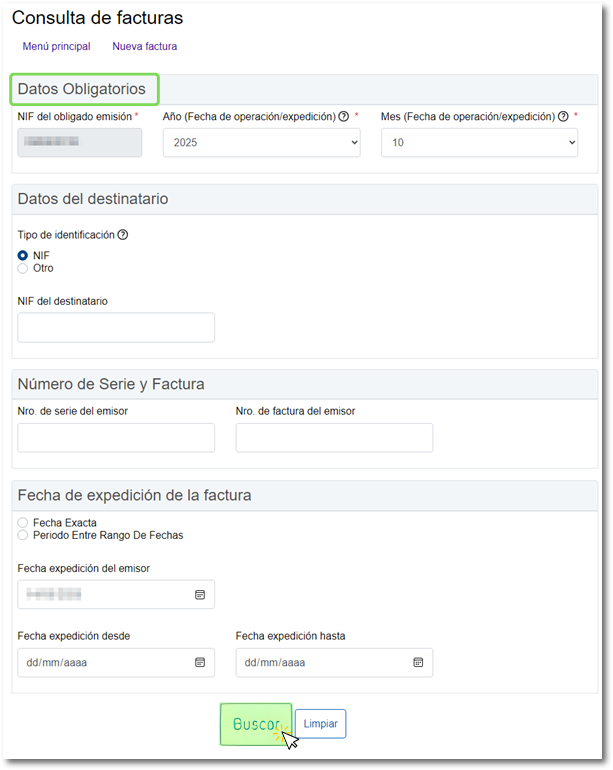
In the query form, select the year of the transaction date or, failing that, the invoice issue date by clicking on the drop-down menu. Select the month of the transaction date or, failing that, the issue date. You can select a month or the quarter of the year in which the invoice was sent. The field "NIF of the required issue" appears already completed with the data of the identified taxpayer.
The remaining fields, recipient information, serial/invoice number, and invoice issue date, are not mandatory.
Once you have completed the filters for your query, click the "Search" button at the bottom.
You will get the records found according to the criteria and filters established in the query. Please note that the first 10 records are displayed. If there are more than 10, click the "More" and "Next" buttons. You also have the "Show/Hide Columns" button to select the columns that interest you most.
To view an invoice, click on the record in the "No. Issuer Invoice Series".
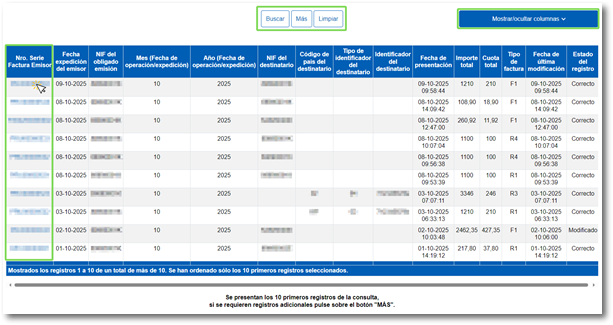
When consulting invoices sent through the billing application of the AEATOnce the search filters have been established, a list of records is obtained. To obtain the details of an invoice with the information it contains, click on the record in the "No. Issuer Invoice Series".
In detail you can see:
- Presentation Data with the date and time of invoice submission, date and time of last modification, the NIF of the presenter, the status and the request identifier
- Data of the obligated issuer with the NIF, name, surname and address
- Recipient information with the NIF, name, surname and address
- Invoice identification with serial number + invoice number, NIF of the required issue and date of issue
- Invoice type classification to see the type of tax and invoice
- Operation data with the date of the operation and the description of the invoice
- List of products and services on the invoice
- Invoice settings with the total amount with adjustments
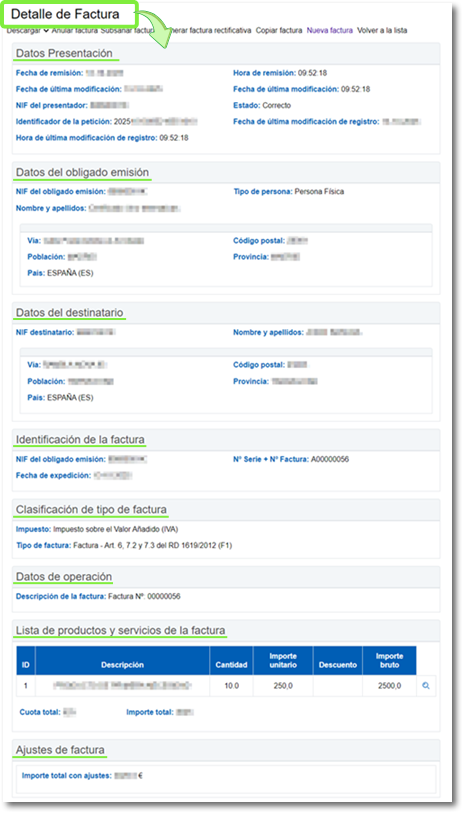
At the top you have the available options:
- Discharge to obtain the invoice in format PDF. It opens in a new window, and you can print the invoice or save it to your computer.
- Check QR. It allows you to verify that the invoice is registered with the Tax Agency.
- Cancel invoice. By clicking on it, you'll see the details of the invoice you've viewed and the "Cancel invoice" button at the bottom to cancel it.
- Correct invoice. Click to access the "Billing Modification Application," where you can fill in the payment details you want to modify.
- Generate corrective invoice. With this option, you can generate a corrective invoice request by modifying the fields you wish to correct. Finally, click "Validate/Generate Invoice"
- Copy invoice. A window will open where you can select the data to be copied to the new invoice.
- New invoice to create a new invoice from scratch.
- Back to list allows you to return to the list of invoices consulted.

Invoices issued using the free software application of the AEAT or a computerized billing system (SIF) VERI*FACTU modality will be verifiable invoices, since they can be consulted in the Electronic Headquarters of the Tax Agency by the client to ensure their tax quality, using for this purpose the QR code incorporated into the invoice.
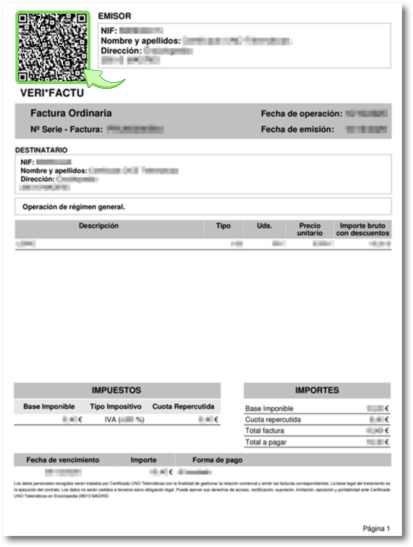
Use your mobile phone's camera to scan the QR code on the invoice your supplier gave you, and it will redirect you to the electronic office with the invoice verification results.
However, to obtain maximum security in the verification process, it is recommended that you use the VERI*FACTU invoice verification service of the APP of the AEAT, which allows scanning of the QR code.
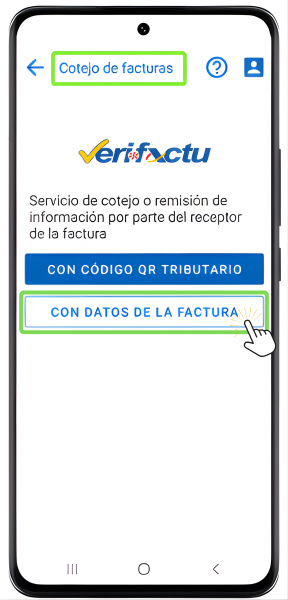
To access the VERI*FACTU invoice comparison tool, open the app. AEATSelect "Management", access the "Notifications and verification" section and click on the "Invoices" or "VERI*FACTU invoice verification" icon.
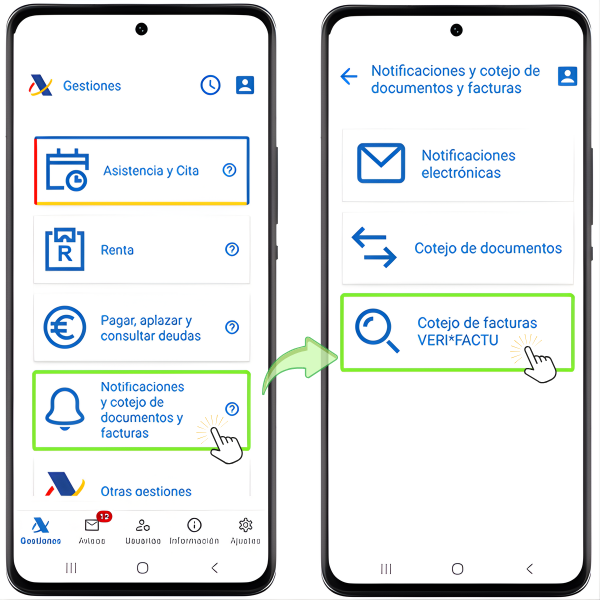
At this point you will have two options:
-
With QR code tax
In order to use QR code reading, you will need to grant permissions to the app.
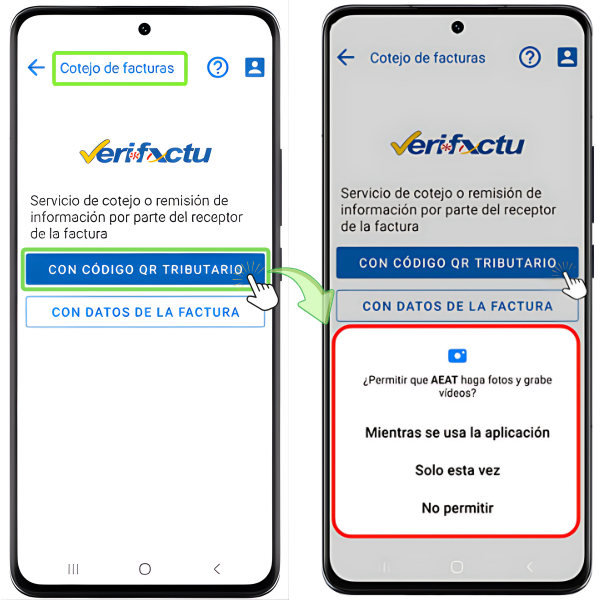
-
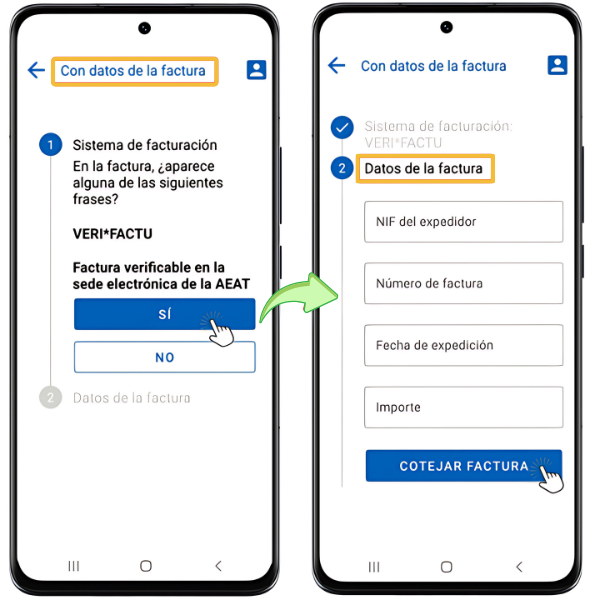
With invoice data
If you select "With invoice data" whether it is verifiable on the Electronic Office of the AEAT or not, you must enter the NIF of the issuer, the invoice number, the date of issue and the amount.
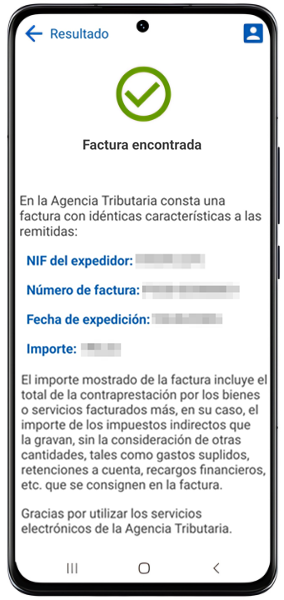
TO) If the match is successful, you will receive a notification indicating that the invoice has been found and has identical characteristics to those submitted,Invoice found".
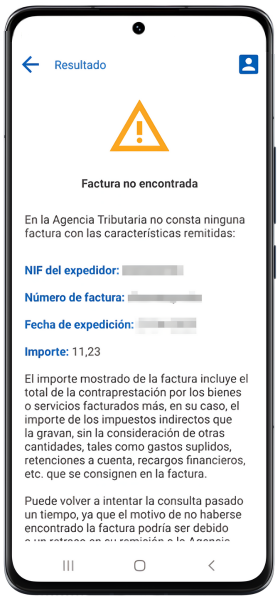
B) If the Tax Agency does not have any invoice with those characteristics on file due to a delay or error in issuance, you will receive the warning "Invoice not found". But you can try again after a while.
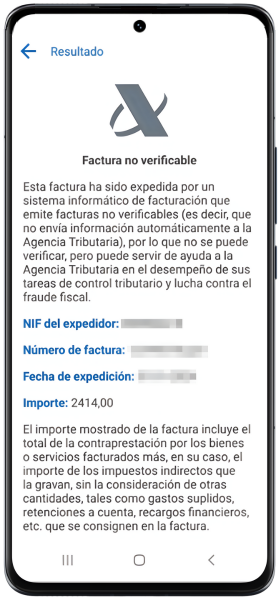
C) If you get the warning "Unverifiable invoice"This is an invoice that has been issued by a computerized invoicing system that issues unverifiable invoices."