Income Tax 2024
Skip information indexDraft tax return processing service for 2024.
In the "Draft/Declaration Processing Service (Income Tax WEB) 2024" taxpayers of any type of income will have access to the Income Tax services that are enabled at that time, in addition to links to procedures and queries for that year.
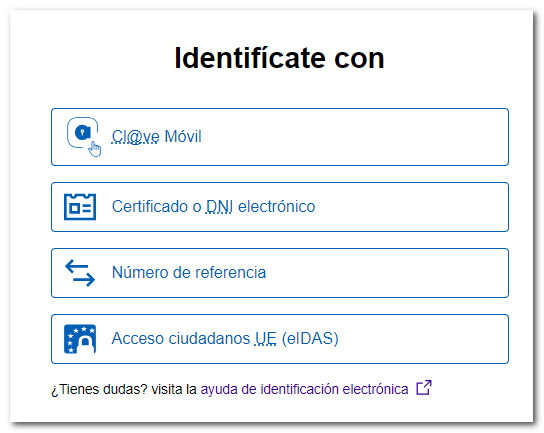
Click on "Draft/Return Processing Service (Income Tax WEB) 2024" and choose your access method (with Cl@ve Mobile Cl@ve, certificate or ID card electronic, reference to the current campaign or eIDAS identification).
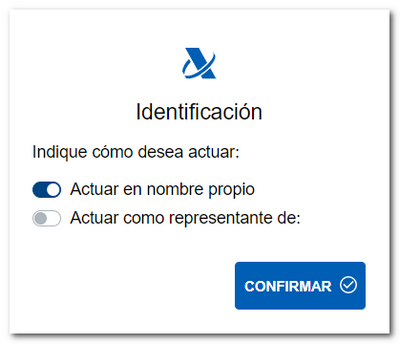
Next, indicate whether you are acting on your own behalf or as a representative and click "Confirm."
If you act on your own behalf, you will have direct access to the file, which will contain the following information:
- The processing status of the declaration.
- Available services include tax and census data queries, and the review and submission of draft tax returns or declarations (Renta WEB).
- The history of the file where all the states of the file have been recorded and, if it has already been submitted, obtain a copy of the submitted declaration from the link "Recording of the declaration...".

If you use proxy access, the data of the person you are acting for is requested.

If there is a power of attorney registered for that NIF that allows the consultation and preparation of Income, you will access the file.
If the contributor is a social worker, to access the Income Tax file it is essential to provide the Income Tax reference valid for that taxpayer.
Once in the file, under "Available Services" click on "Draft/Declaration (Renta WEB)" to process the declaration; If you have already accessed Renta WEB at some other time, a pop-up window will inform you of the existence of a previous declaration, which you can recover from the option "Continue session" , modify a previously submitted declaration from "Modify submitted declaration" or start a new process from "New declaration" , incorporating the tax data again. You can also choose the co-official language in which you wish to make the declaration.

If this is your first time accessing the system, the identification data of the declarant and the rest of the members of the family unit will be displayed on the first screen. If it contains incorrect or inaccurate data or if specific information has been omitted, you must first modify it. Please note that marital status and whether you have minor children or legally incapacitated children subject to extended or rehabilitated parental authority are data that cannot be modified later.
If there is a spouse, to also transfer his/her data, click on "Authorize spouse" and indicate the reference for the current fiscal year or Cl@ve for this year. If you do not wish to enter your spouse's tax information, you must check the box for calculating the individual return.


By clicking on the icon with the pencil symbol you can modify or introduce new members into the family unit. To delete them, press the cross icon. Once you have completed the data, click "Accept" at the bottom.

After accepting the identification data screen, if the application detects that additional tax data must be transferred to the declaration, follow the instructions in the following windows to incorporate this information. If you do not need to enter additional information to generate the declaration, you will directly access the summary of results from where you can check the result of the declaration for each modality and complete the declaration, if necessary.
In the Declaration Summary you have an additional menu from which you can submit the declaration, view the tax data imputed for each declarant or download a PDF with the preview of the generated declaration. To view it correctly, you will need to have a file viewer installed on your computer.
From the menu at the top, you will have other additional options:
- "Personal data" where you will see both personal and family data included in the declaration.
- "View tax data" you will be able to check which data has been included in the declaration, which data has not been included and the notes on the inclusion.
- "Save" allows you to save the session you have been working on. It is saved on the remote server of AEAT Please note that saving will overwrite the previously saved declaration.
- From the icon of the video camera You will be able to link to the various help videos for Renta 2024.
- "Aid" From there you will access the 2024 Income Tax manual.
- "Find mailbox" allows you to locate a specific mailbox.


From the button "Declaration sections" you can access the different sections of the declaration and use the arrow commands to move between the pages. Before filing the return, check whether it contains any errors in its completion by clicking the "Validate" button. If you need to go to a specific box or item on the return, click on the magnifying glass icon to help you search.
From this same window you can access the results summary or "Submit declaration" to complete the processing of the declaration. Select how you want to file your return, individually or jointly.

If the statement has a return value, check the code. IBANof the account to which you wish the refund to be made. By default, the account IBAN indicated in the previous exercise will appear; However, you can modify it on this screen. You can also select an account IBAN opened abroad ( EU / SEPA ) for the refund.
If the return results in income, you can select one of these payment options:
-
To pay:
-
"Electronic payment". In this case you can choose from three payment methods:
-
Payment by direct debit from account . It will connect to the payment gateway to obtain the NRC at that time, charging the amount to the account indicated.
-
Payment by card or Bizum . It will connect you to the online payment platform, where you will be asked to enter either your card details or the phone number where the payment request will be sent via Bizum, in the bank's app.
-
IntroduceNRCof a payment already made. You will need to make the full payment from your bank, generating theNRCproof of payment, either at their offices or through electronic banking offered by your bank. Next, you will need to enter theNRCin the "Reference number" boxNRC"

-
-
"Document to be deposited in Bank/Cashier". Allows you to obtain the payment document to pay at the Bank or Cash Register. With this option, the declaration will be submitted electronically but pending payment at the financial institution.

-
-
Other payment methods. For example, the recognition of debt with impossibility of payment or request for deferment, among others. In addition, you can opt for "Debt recognition and payment by transfer", for citizens who have accounts opened in an entity that DOES NOT COLLABORATE in the collection of taxes from the AEAT . In this case, payment will be considered made on the date on which the transfer is received by the AEAT .

After selecting the payment method, press "Accept" to submit the declaration; Then check the "I agree" box and click "Sign and Submit" to complete the submission process.
Once your return has been submitted, you will see the message "Your submission has been successful" and the assigned secure verification code. In addition, a PDF will be displayed containing a first page with the submission information (registration entry number, Secure Verification Code, receipt number, day and time of submission and details of the submitter) and on the subsequent pages, the submitted return.

In cases where there is recognition of debt, a link to submit the deferral or compensation request will be displayed on the response sheet for successfully submitting the request. Click on "Process debt" and the settlement details will appear with the debtor's details and the settlement code. You will have to choose between one of the available options: defer, compensate or pay.
