Model 303 - Technical assistance
Skip information indexHow to file a corrective return to declare a higher income
In the event that you have submitted a self-assessment of VAT of Form 303 with a result to be entered and you want to correct it to declare a higher income, click on the link "Form 303. Exercise 2025. Presentation and help desk Pre303".
You can access by identifying yourself with Cl@ve , certificate or DNI electronic or eIDAS .

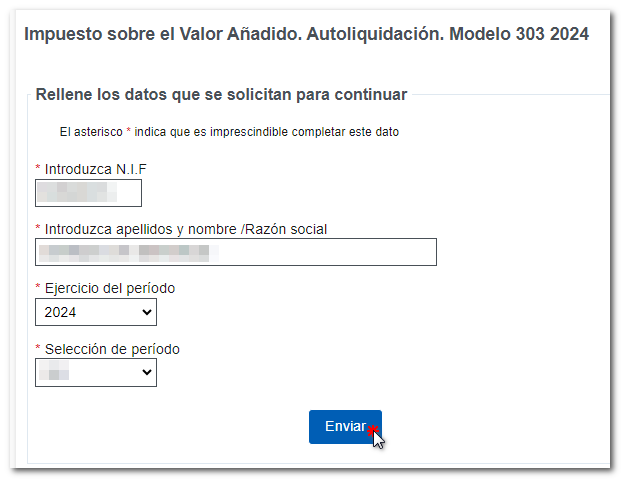
After identification, fill in the required data in the initial window: NIF , Surname and name or company name and select the fiscal year and period for which you want to submit the corrective self-assessment. You can only file corrective returns for periods starting in September 2024 and Q3 2024. Then, press "Confirm"
You will access the "Census Window VAT", which shows the information in force during the accrual period regarding the VAT and the PIT. At the top, you will find the available options: "Consult and/or modify my census data" VAT" and "Continue with the submission of form 303."
Click on "Continue with Form 303" to access the form.
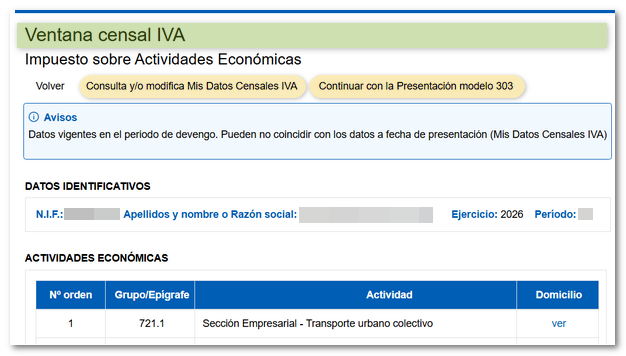
In the next window click on "Continue with the Model 303 Presentation". Next, click on "Modify declaration" as the recommended option, although you can use the "Import", "Continue" and "New declaration" options.

Select the self-assessment you want to rectify and press "Accept".

The screen will show you the self-assessment that you submitted. Correct the data you consider necessary and then go to "Sections" to select the "Result" page.

Scroll down to the "Rectifying" section and check the "Rectifying self-assessment" box and indicate the receipt number of the self-assessment you want to rectify. In addition, you must indicate at least one of the reasons for the rectification.

In box 70, enter the positive amount from box 69 of the self-assessment that you are correcting. The result of the rectification will be automatically calculated in box 71.

To check if there are any warnings or errors when completing the declaration, click on the " Validate " button. Remember that it is advisable to check the warnings, although they do not prevent the declaration from being submitted. If the declaration contains errors, these must be corrected.

If the return contains no errors, press the "Submit return" button.

Using the button Export, you will get a file in the format BOE which you can import back into the form and which is valid for submission. The file name is made up of the NIF of the declarant, the exercise, the period and by the extension.303.
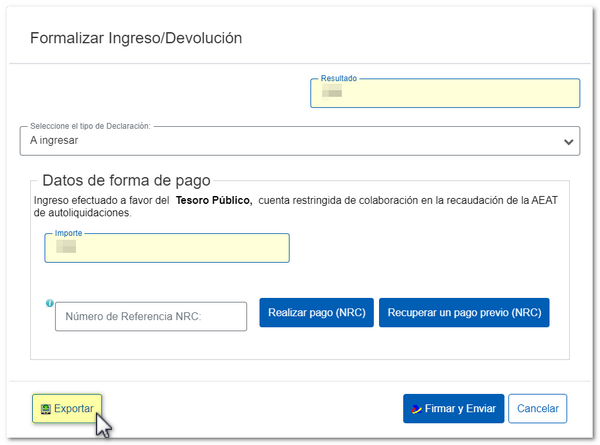
In declarations with a positive result, select the type of declaration from the available options.
If you select the option To enter You will need to make the payment and obtain the NRC (Complete 22-character Reference Number that serves as proof of payment).
In the same window you will find the button "Make payment (NRC)", which links directly to the payment gateway to make the payment by debiting the account, or by card or Bizum.
You can also make the payment through the self-assessment payment procedures available on the Electronic Office website. AEAT or through the options offered by your bank.
The option "Recover a previous payment (NRC)" allows to recover a NRC of a payment made previously and which you wish to include for the self-assessment filing. This button will only be available for submissions made on one's own behalf and with power of attorney, not for social collaborators, and the details must match: model, exercise, period, NIF of the holder and amount to be deposited.
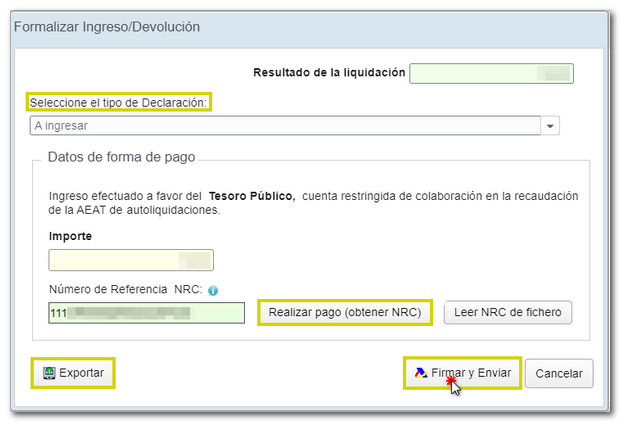
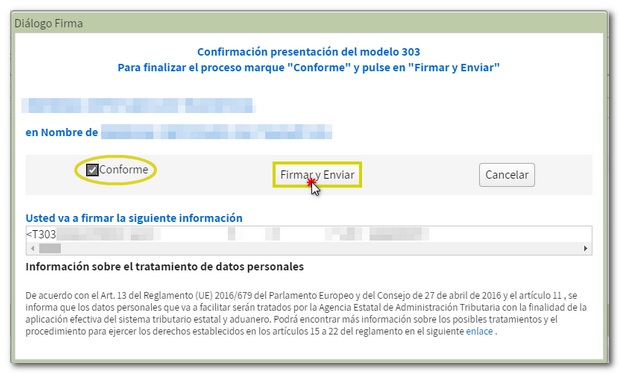
Finally, a window will appear with the information of the encoded declaration and the data of the presenter and the declarant. Check the "I agree" box and press "Sign and Send" to complete the submission.
If everything is correct, the response sheet will open with the message "Your submission has been successfully completed" and an embedded PDF containing a first page with the submission information (registration entry number, Secure Verification Code, receipt number, day and time of submission and presenter details) and, on the subsequent pages, the complete copy of the declaration. You can print or save document PDF .