Income Tax 2018
Skip the table of contentsRenta WEB Open 2018
Access to “Renta WEB (OPEN) 2018 Simulator” does not require the taxpayer to provide identification, does not validate the taxpayer’s tax identification number (NIF) and does not require any tax data, but it does allow you to run a simulation of Renta WEB 2018. It is available on the Form 100 formalities page on the electronic headquarters.
In the first window, you can start with a blank tax return by clicking ‘New tax return’ or ‘Load’ to retrieve the details from a saved tax return. To retrieve a previous tax return, you will need to open the .ses file that is generated when you save the return.

The first step is to enter your personal details, including your tax identification number (NIF), although these will not be checked against the Tax Agency’s register.
Once the identification details screen has been accepted, you are taken directly to the summary of results. Using the hyperlinks provided in the summary sections, you can navigate to the various pages of the tax return to enter the remaining details required to perform the calculations, bearing in mind that it is not possible to enter details on the joint tax return. You can also click on ‘Continue with the tax return’ to access the various pages that make up the tax return.

To navigate between the different pages, you can use the arrow keys or expand the sections. If you start with a blank tax return, you will need to enter all your personal and financial details in order to simulate the result.

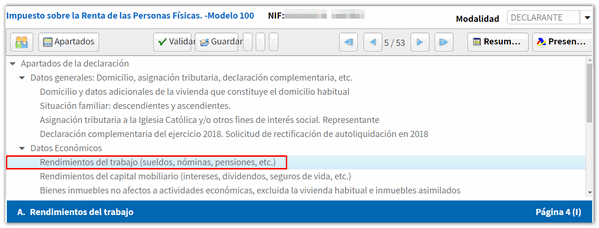

Once you have completed the tax return, it is advisable to check that everything has been entered correctly, although warnings and errors may appear that do not affect you or that are simply there to allow you to submit the return. However, please bear in mind that you will not be able to submit your tax return using the income tax WEB Open version. Go to the last page, ‘Admission or Refund Document’, to check the result.

If you wish to retrieve a tax return that you have already completed, click the ‘Save’ button to obtain the .ses file, which you can then load in the initial window by clicking ‘Load’. You can choose where the file will be downloaded to; if you do not select a folder, it will be saved, by default, in the folder specified by your browser. The file will be nameddat-100-the declarant’stax identification number-date it was saved.ses

Renta WEB Open allows you to generate a PDF containing a preview of your tax return; please note that this document is not valid for submission. Click on ‘Summary of tax returns’ to view the results for each category again and generate a PDF with a preview.

