Income Tax 2018
Skip the table of contents2018 Income Tax Online Filing Service for Employees
Social collaborators who are party to the relevant agreement may access third parties’ 2018 income tax returns via the option ‘2018 draft/tax return processing service (Renta WEB) for social collaborators’.
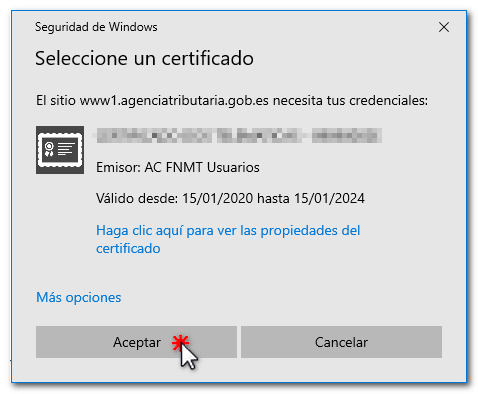
Log in using your electronic certificate. If you are not registered or an error message appears, please consult the information on social contribution.
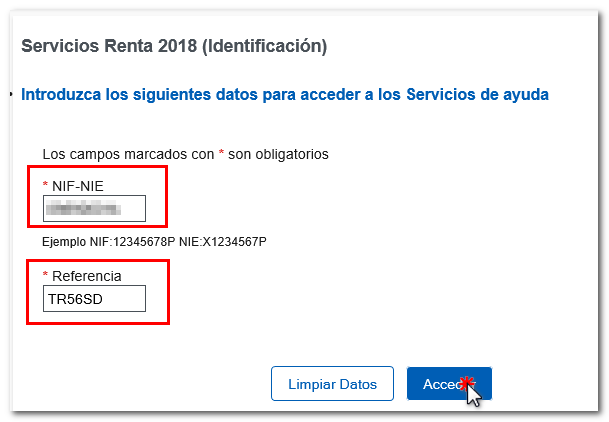
Enter the taxpayer’s tax identification number (NIF ) and the reference number for their income tax return. Please note that the reference number you need to use is the one obtained for your most recent income tax return. Click 'Log in'
Once you have accessed the file, you will have the following information:
The processing status of the tax return.
The services available include consulting tax data and census data, as well as viewing and submitting draft declarations and tax returns (Renta WEB).
The case history, which records all the stages of the case, and, if it has already been submitted, a copy of the tax return submitted via the link ‘Record of the tax return…’.
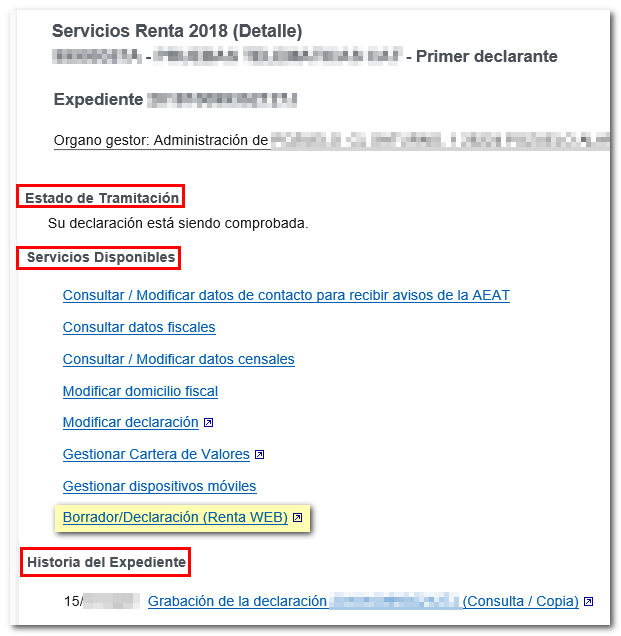
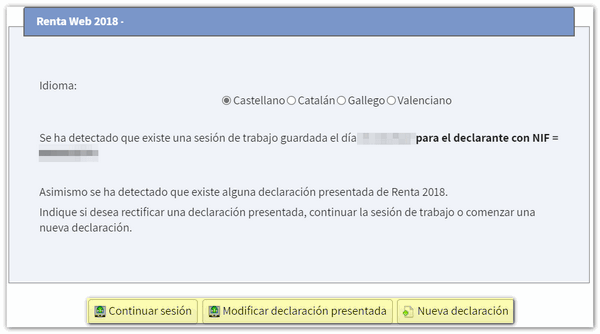
Under ‘Available Services’, click on ‘Draft/Tax Return (Renta WEB)’; if you have already logged into Renta WEB at some point, a pop-up window will inform you that a previous tax return exists, which you can retrieve via the“Continue session” option, amend a previously submittedtax return via“Amend submitted tax return” or start a new process via“New tax return”, re-entering your tax data. You will also be able to choose the co-official language in which you wish to make your tax return.
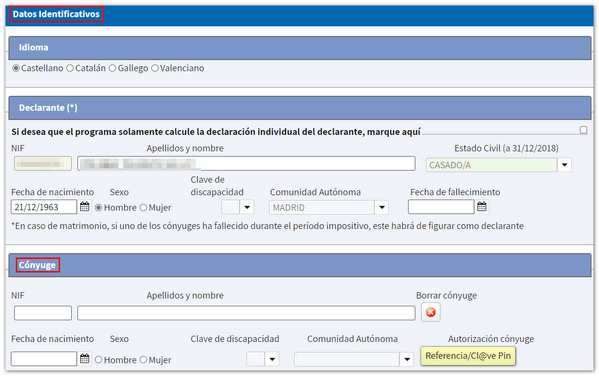
If this is your first time logging in, the first screen will display the personal details of the person filing the tax return and those of the other tax filers within the household. If it contains incorrect or inaccurate information, or if any specific details have been omitted, you must amend it first. Please note that your marital status and whether you have minor children or children who are legally incapacitated and subject to extended or reinstated parental authority cannot be amended at a later date.
If you have a spouse, you must authorise the transfer of your spouse’s tax data using their reference number or Cl@ve. If you do not wish to enter your spouse’s tax data, you must tick the box to calculate your tax return individually.
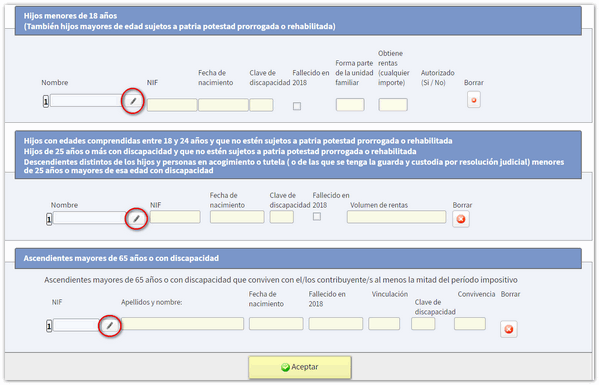
By tapping the icon with the pencil symbol, you can edit or add new members to your household. To delete them, tap the cross icon. Once you have filled in the details at the bottom, click "Accept".
After accepting the identification details screen, if the application detects that additional tax data need to be included in the tax return, follow the instructions on the subsequent screens to enter this information. If you do not need to enter any further information to generate the tax return, you will be taken directly to the summary of results, where you can check the outcome of the tax return for each category and complete the tax return, if necessary.
At the top, there is an additional menu from which you can view the tax data allocated to each taxpayer and download a PDF containing a preview of each taxpayer’s tax return or the joint tax return. Please note that in order to view documents in PDF format , you must have a PDF viewer installed on your computer .
Under ‘View transferred data’, you can check which data has been included in the tax return, which has not been included, and the notes relating to the incorporations.
There are also explanatory videos available, and by clicking on the question mark icon, you can access the help guide for the filing of your income tax return.
From the ‘Summary of tax returns’, you can also save the tax return using the ‘Save’ option and view your personal details under ‘Personal details’. By clicking the ‘Continue with the tax return’ button, you will be able to access the various pages of the tax return to check all the details and continue completing it.

By clicking the ‘Sections’ button, you can access the various sections of the tax return and use the arrow keys to navigate between the pages. Before submitting your tax return, check for any errors in the information you have entered by clicking the ‘Validate’ button. If you need to go to a specific box or a particular item on the tax return, click on the magnifying glass icon.
From this window, you can access the summary of results or click ‘Submit tax return’ to complete the filing of the tax return.

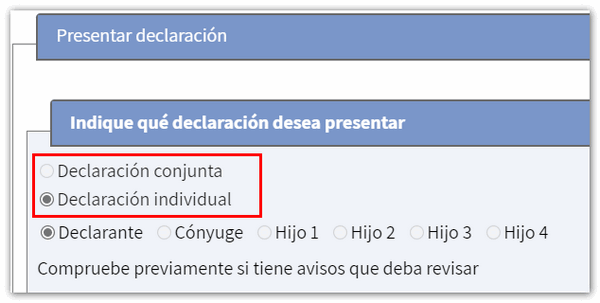
Select how you wish to file your tax return: individually or jointly.
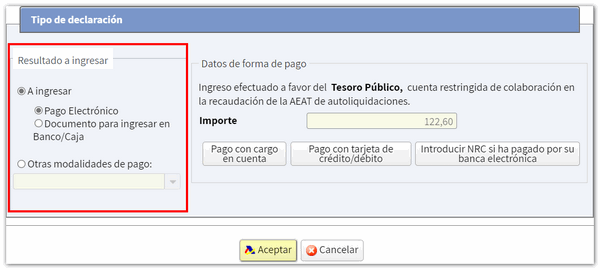
If your tax return results in a refund, you will simply need to enter your IBAN, but if the tax return results in a payment due and you wish to pay the amount into your bank, click on ‘Document for payment at a bank or building society’. This will mean the tax return is submitted online but remains pending payment, so you will need to go to a bank or building society with the payment document to pay the amount.
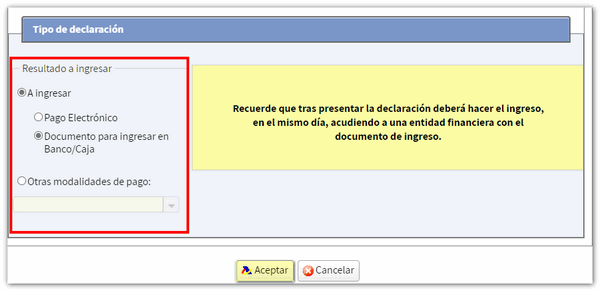
If you tick ‘To be paid’, you must obtain the NRC and enter it in the relevant box, or select other payment methods such as an acknowledgement of debt with inability to pay or a request for a deferral, amongst others.
Finally, click ‘Accept’ to submit the form online, then tick the ‘I agree’ box and click ‘Sign and send’ to complete the submission process.