Error 403, SSL connection error, The page cannot be shown or Secure connection failed when accessing or signing a procedure on the internet
Skip information indexError 403 on Android mobile device
To avoid error 403 on Android devices follow these instructions:
NOTE: On Android devices, access must be done with Google Chrome, Microsoft Edge or Mozilla Firefox (which manages certificates on Android since version 144.0.2).
-
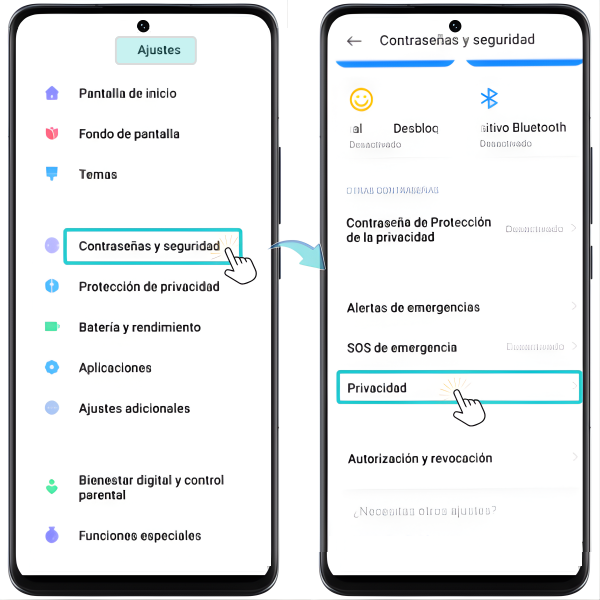
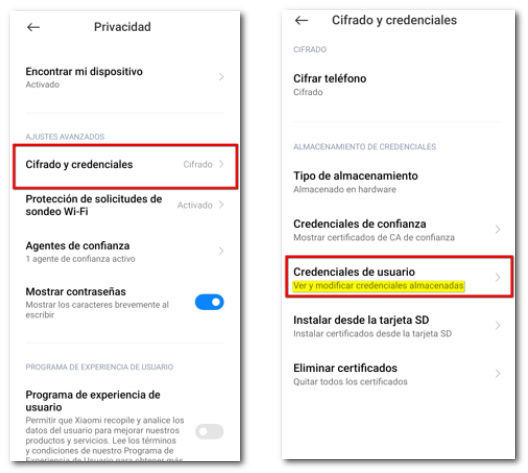
Check if there is a valid and current certificate installed on the device. The certificate may be expired, revoked, or damaged. It is also possible that you do not have any certificates installed in the Android certificate store. To check the certificates installed on Android 7 or higher (on Android 6 and lower, it is generally not possible to check which certificates are installed on the system; for this version, it is necessary to try to access a procedure that requires it), go to "Settings", "Passwords and security", "Privacy", "Encryption and credentials" and "User credentials". The path varies depending on the device and/or Android version. To try to locate the option, we recommend using the settings search bar (magnifying glass or top search box) where you can search for "Credentials" or "Certificates" and access "User Credentials" or "User Certificates".
Accessing "User Credentials" or "User Certificates" displays the list of installed certificates. Except in a few cases, the certificate data (NIF, surname and first name, expiration date, etc.) is not detailed. It only shows the name that was assigned when installing the certificate.
Check the correct functioning of the certificate on the website of the issuing entity. If you are from the FNMT access: https://www.sede.fnmt.gob.es/certificados/persona-fisica/verificar-estado and check the information related to the certificate: If the certificate is correct the message will be "Your certificate has just been verified. You are in possession of a digital certificate FNMT Valid and not revoked . Your certificate is working correctly." You can also check the name, ID number and expiry date.
If you have a valid copy of the certificate you can import it to the device.
-
Exit the browser completely . You need to completely exit the browser for the certificate selection window to reappear. Normally the process remains active. To ensure that a browser is closed, we make sure that the "Recent Apps" are displayed, by pressing or holding the button, which is located by default (depending on the version) at the bottom, and in the list that appears below, we drag the application off the screen to close it or press the specific button.
Restart your browser and make sure you select the correct certificate when signing.
-
We recommend deleting temporary files and browser cache so that the error does not recur due to being stored in memory.
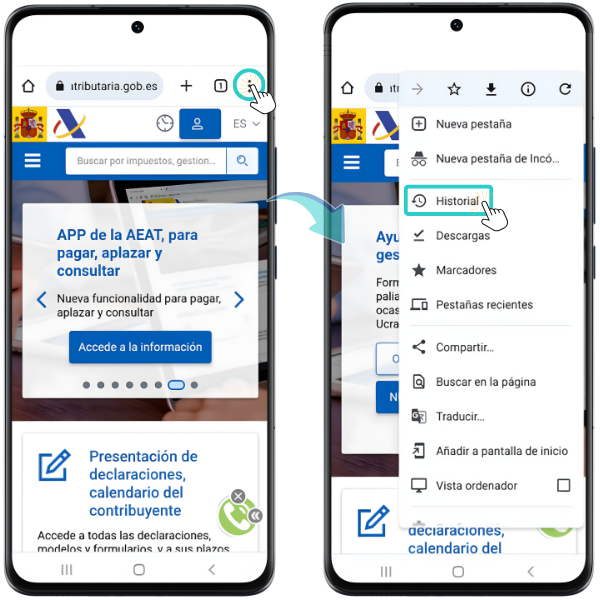
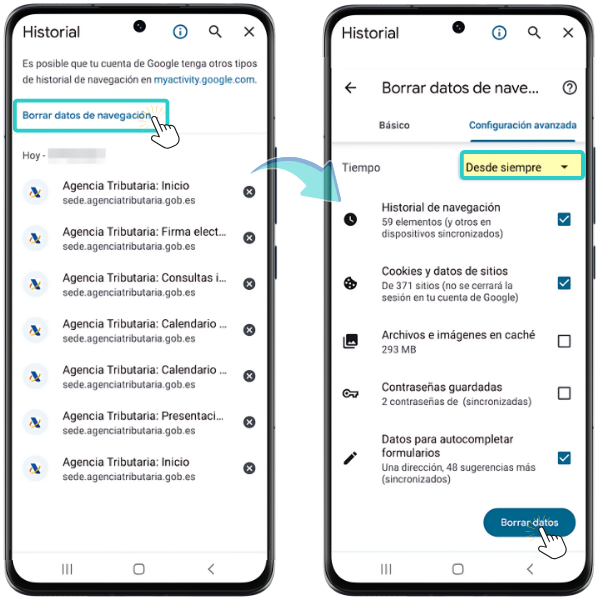
In Google Chrome Click on the three-dot menu and go to "History", select "Clear browsing data...", click on "Advanced settings" and select "All time", leave the options "Browsing history", "Cookies and site data" and "Form autofill data" checked. Then press "Clear data".
In Microsoft Edge Open the options menu (located at the bottom, where the three dots appear) and click on "Settings" (gear icon). Go to "Privacy and security", "Clear browsing data". Expand the "Time range" and select "Always". Check "Browsing history", "Cookies and site data" and "Autofill form data". Then press "Clear data".
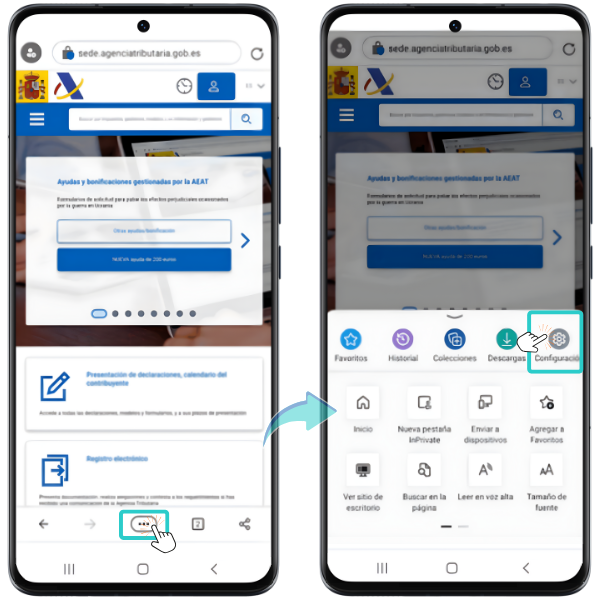
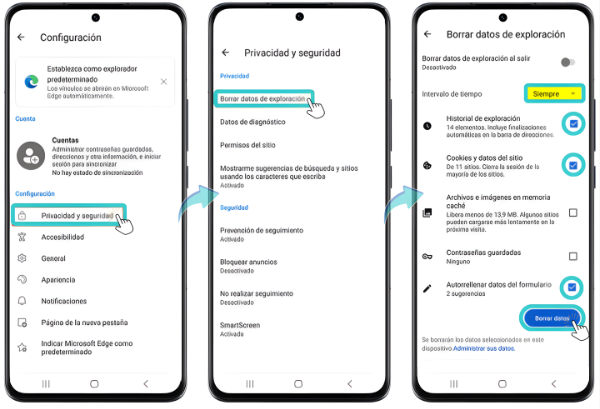
In Firefox, Open the options menu (located at the top, in the three dots) and press "Settings" (gear icon). Go to "Clear browser data" and check "Open tabs", "Browsing history" and "Cookies and site data". Then tap "Delete browsing data" and "Delete" on the subsequent prompt.
- Reinstall the certificate. If the error persists, it is recommended to reinstall the certificate using a copy that already exists or that you can generate from a computer and attach it to an email to install it from there. We recommend consulting the help: "Android - How to import an electronic certificate" located a little higher up in the drop-down menu.