Error 403, SSL connection error, The page cannot be shown or Secure connection failed when accessing or signing a procedure on the internet
Skip information indexError 403 on iOS mobile device

To avoid error 403 on iOS devices, follow these instructions:
-
Check if there is a valid and current certificate installed on the device. The certificate may be expired, revoked, damaged, or comes from an invalid copy (.cer). It is also possible that you do not have any certificates installed in the iOS certificate store.
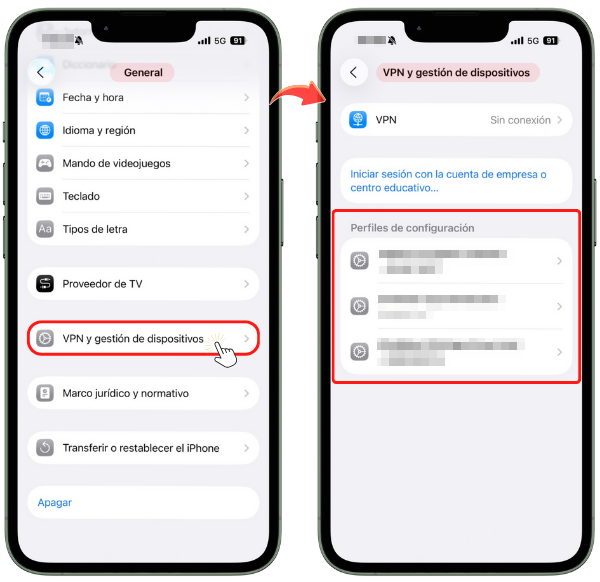
To verify that the certificate is installed, from iOS 15 and later, go to "Settings", "General", "VPN & Device Management", "Configuration Profiles".
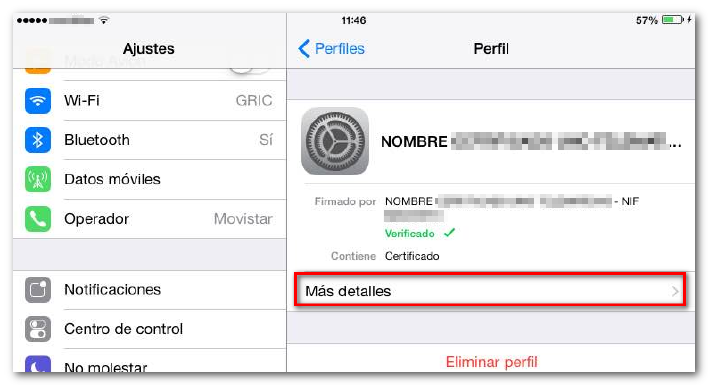
Select a certificate and click "More details" to check the validity date.
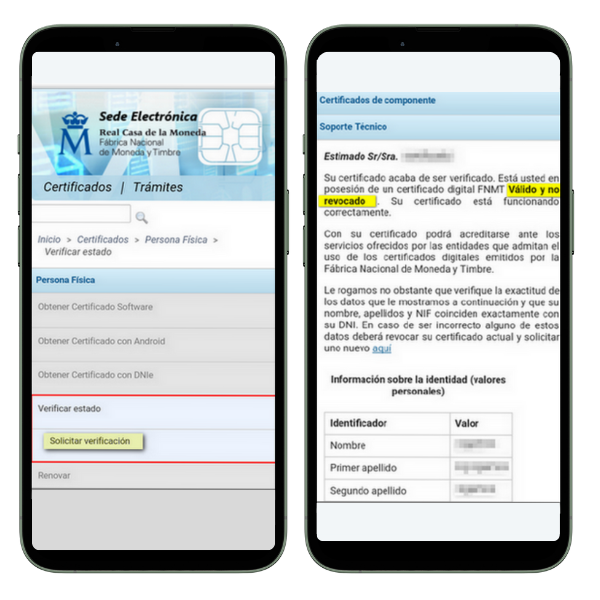
Check the correct functioning of the certificate on the website of the issuing entity. If you are from FNMT access with Safari to: https://www.sede.fnmt.gob.es/certificados/persona-fisica/verificar-estado and check the information related to the certificate. If the certificate is correct the message will be "Your certificate has just been verified. You are in possession of a digital certificate FNMT Valid and not revoked . Your certificate is working correctly."
-
Check if you are using a browser not recommended.
The compatible browser is "Safari" since neither "Google Chrome" nor "Mozilla Firefox" currently handle certificates on iOS systems.
-
Exit the browser completely .
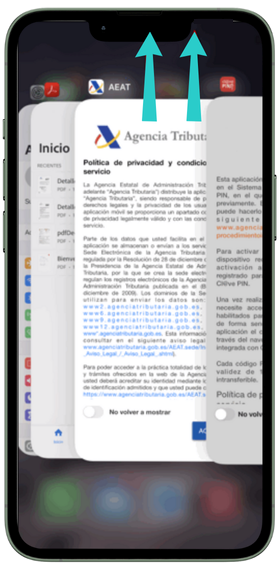
We completely exit Safari so that the certificate selection window reappears. On iOS, to completely exit the applications you have open, you must access the "App Switcher" function. The windows of the different applications currently open are displayed in a list (or stacked windows). Drag the Safari browser out of that list to close it.
-
If the device does not have a physical button, you can open the "Application Switcher" from the home screen (the one that appears when you start the device) by sliding your finger from the bottom of the screen to just below the center, holding it momentarily, and then releasing it.
-
If the device has a physical home button, press it twice consecutively (like a double-click).
-
-
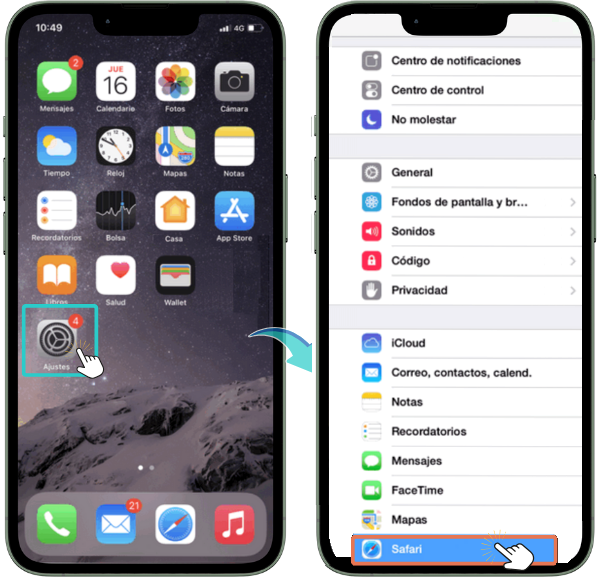
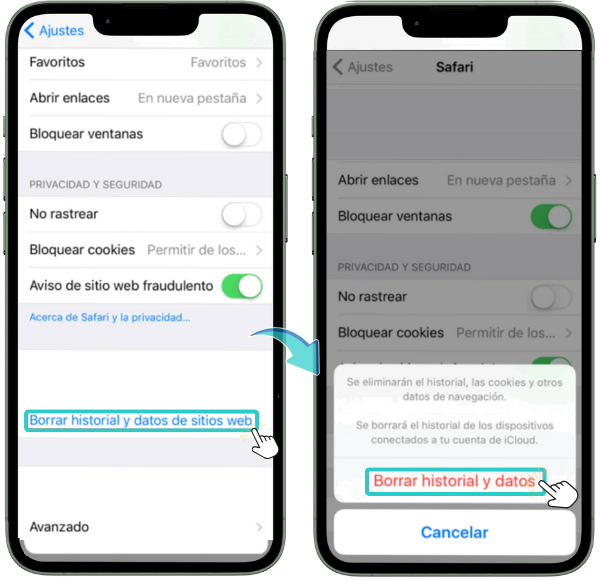
We recommend deleting temporary files and browser cache so that the error does not recur due to being stored in memory. In Safari, go to the system's "Settings" menu and select "Safari." Next, click on “Clear history and website data” and press “Clear history and data”.
-
Reinstall the certificate. After successfully restarting the browser, if error 403 occurs again after the previous checks, reinstall the certificate using a copy that already exists or that you can generate from a computer and email it to yourself to install it from there, as indicated in the entry "How to import a copy of the certificate on iOS devices" located in the related help.