Models 199 to 289
Skip the table of contentsModel 235
Form 235 can be submitted, along with any amendments or cancellations, via the online service or using the form available at the Tax Office.
This formality can be accessed using an electronic certificate or an electronic ID cardand, if the taxable person is an individual, also using Cl@ve.
In addition to the person making the tax return, the submission may be made by a third party acting on their behalf, whether a social collaborator or an authorised representative.
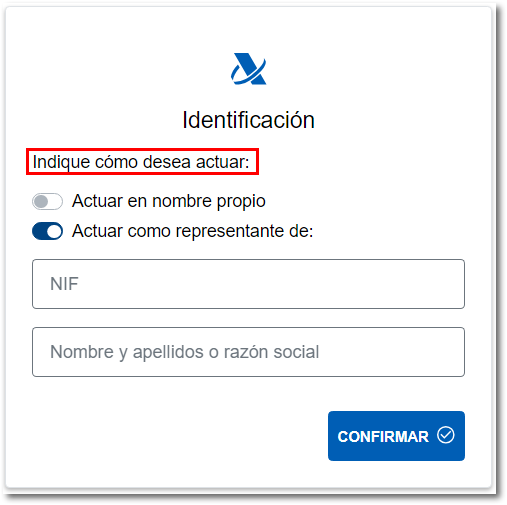
Once you have logged in, the system will ask you whether you are acting on your own behalf or on behalf of third parties
Fill in the details on the various tabs of the form.

In some sections, you will find a set of buttons to add new entries, delete them, and view the details of each one so that you can edit them if you wish. You can use the ‘New registration’ button to perform a registration, the ‘Import’ button to import a file from your database, and the ‘View details’ button to access a specific record.

At the top of the form, you’ll find the actions available for this form. The ‘Save and Upload’ buttons , marked with a folder icon, shown in the image, allow you to save a file with the .ses extension, which will be downloaded to the default location on your computer, so that you can later upload it and continue filling in or submitting the form.

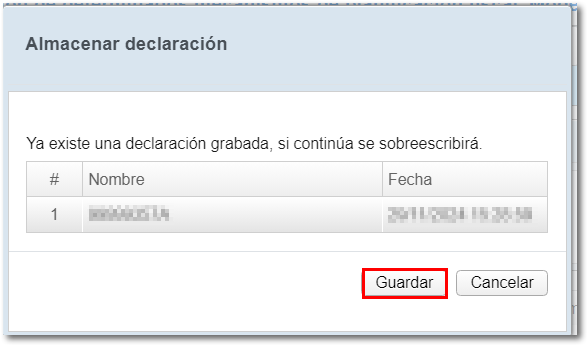
The other‘Save and Load’ options allow you to store the data you have entered so far on the AEAT(State Tax Administration Agency) servers, even if it has not been validated (it may contain errors or be incomplete)

If a tax return has already been saved, it will be overwritten.
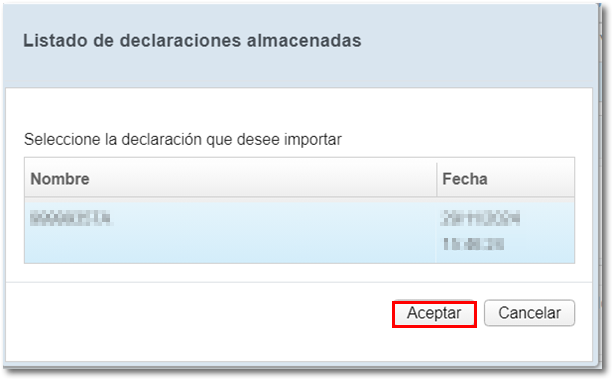
When you click on ‘Upload’, if there is a saved tax return for that tax identification number, the server will detect it and give you the option to retrieve it.
Once you have finished filling in the various tabs and sections of the form, click on ‘Validate tax return’ and the programme will tell you whether or not there are any errors.

If there are any errors or notifications, you can view the details by clicking ‘Go to error’ or ‘Go to notification’.

Once the tax return has been validated and found to be error-free, click "Sign and send".


The confirmation window will appear; click ‘Agree’ and ‘Sign and Send’

A successful submission will result in a response page containing an embedded PDF, the first page of which includes the submission details (registration reference number, secure verification code, receipt number, date and time of submission, and the submitter’s details) and, on the following pages, a complete copy of the tax return.